


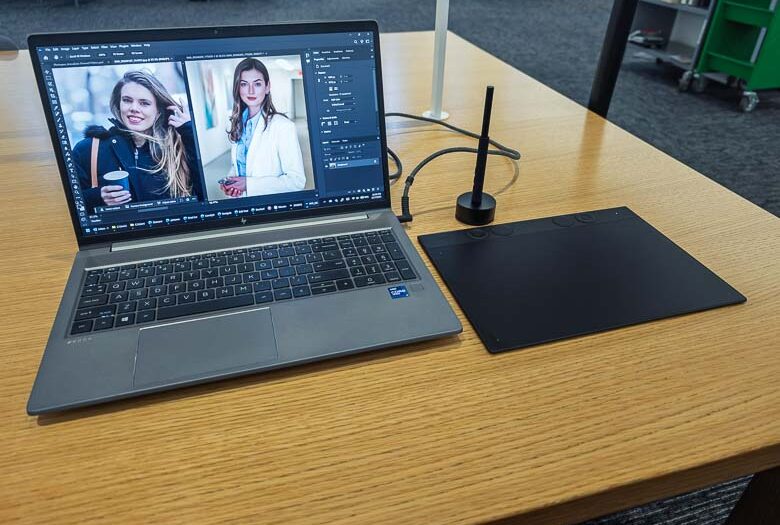
For the past 10 years or so I’ve mostly been using pen displays for graphics and retouching work… well, actually I like to use pen displays for everything. The Wacom Mobile Studio Pro was one of my favorite pen display tablet PCs, while working at a desktop I used the Wacom Cintiq a lot as well. However, back in the 1990’s those kinds of things didn’t exist, so I started with the cheapest 4×5 Wacom ArtPad graphics tablet (today’s “small” size) and eventually upgraded to the “medium” size once I started making money. Today, I’ve got the current 2025 model of the Wacom Intuos Pro M and it’s quite a nice upgrade from the medium sized graphics tablets of 25 years ago. Honestly, there are some nice advantages to using this type of graphics tablet with your computer as opposed to something built into the display like the Wacom Cintiq models.
What’s in the Box

Take a look at the above video for our unboxing of the Wacom Intuos Pro M for 2025.
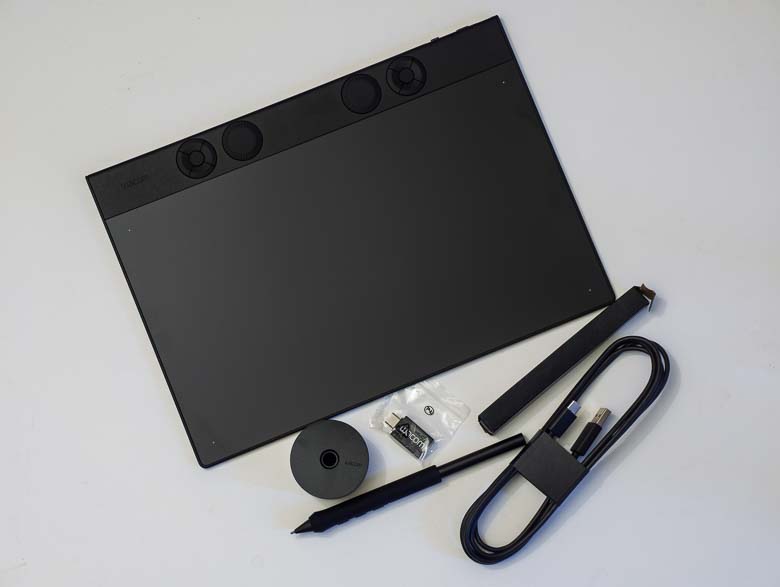

The Wacom Intuos Pro M comes with a good number of things that I missed from what was included with the Wacom Movink. Firstly, I love that there’s a weighted cylindrical pen holder. Having something that keeps the pen upright on a desk ready to be grabbed at a moment’s notice has become essential.
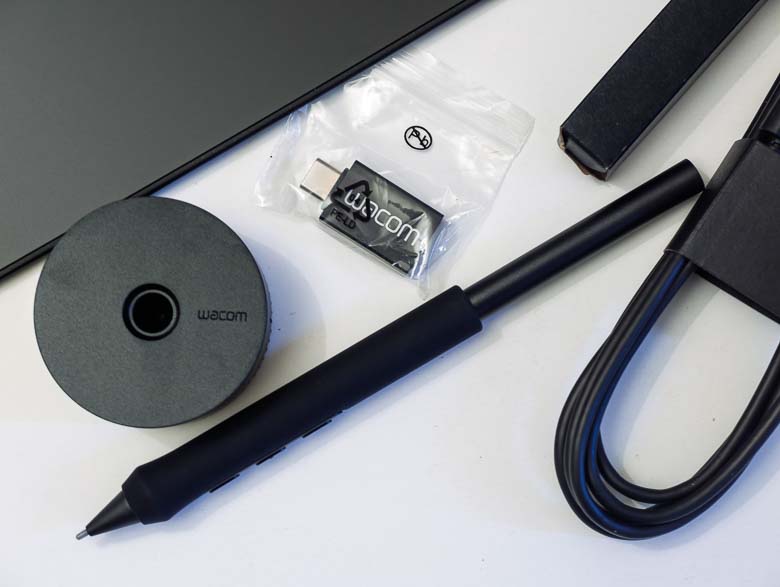
You’ve also got a USB-C Bluetooth dongle included just in case you’ve got a computer that does not have Bluetooth already built in. I guess that might be kind of rare these days, but if I were building a powerful workstation tower today, I certainly might skip including a Bluetooth radio. Of course, you’ve got a USB-A to USB-C cable for plugging the Intuos Pro into a computer as well. We’ve got some pen-tip replacements and the Pro Pen 3 with a nice rubber grip.
Hardware
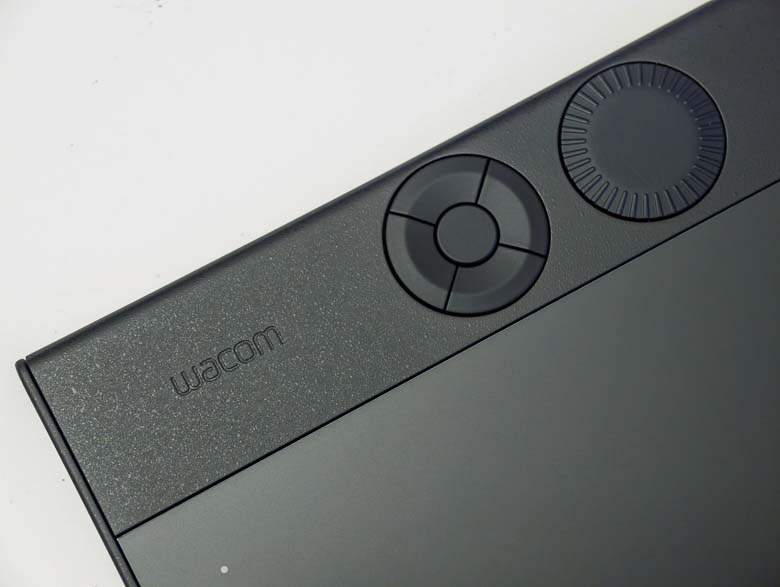
An essential part of Wacom graphics tablets are the programmable hardware button controls. The Wacom Intuos Pro M has two 5 button directional button layouts on the top edge bezel as well as two programmable dials.
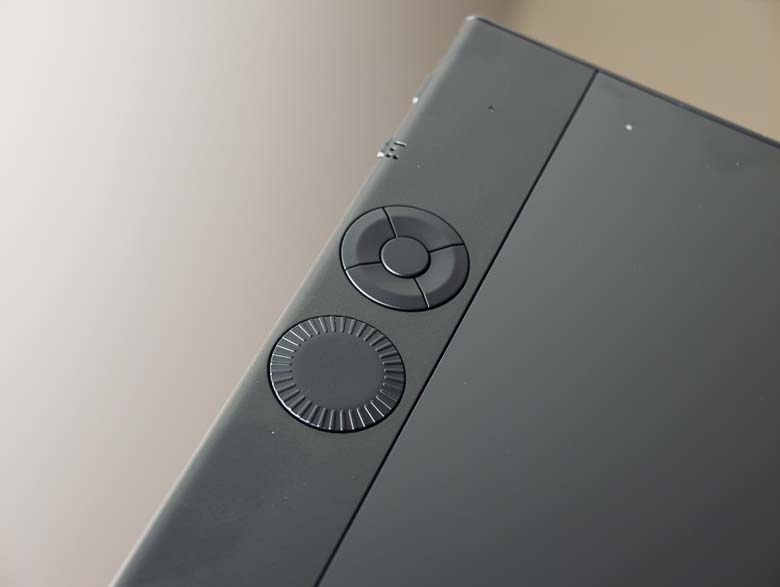
The buttons and dials are very sturdy and feel like they will last a very long time. Usually I kind of like these “express keys” to be on the side of the tablet because then I can hold it with my left hand with my thumb over the buttons and then use the pen with the right hand. The tablet can be used in any rotation configuration, so I could use it in vertical mode with the buttons on the left if I wanted to, but then the pen tablet active area would be vertical instead of horizontal.
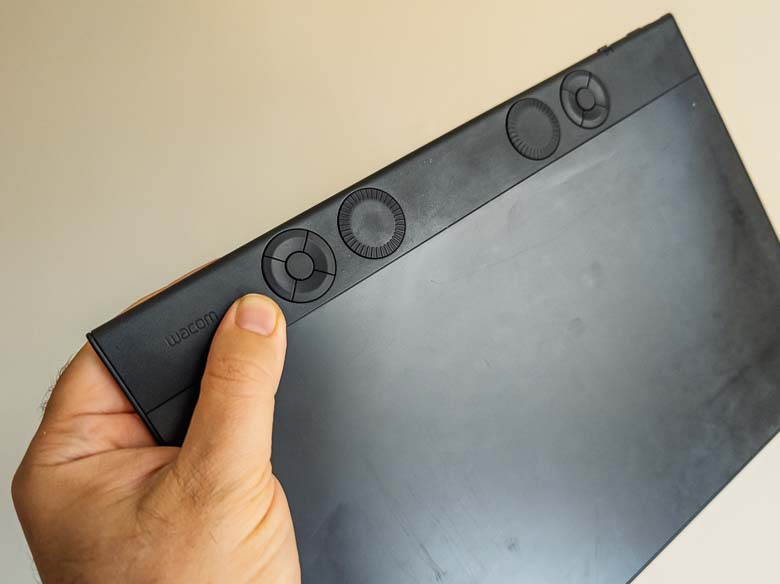

If you want to hold the Intuos Pro M in landscape orientation with your left hand while using the pen in your right hand, the express keys are in the perfect position to be completely unusable. The circular 5 button array is just out of reach of a thumb.
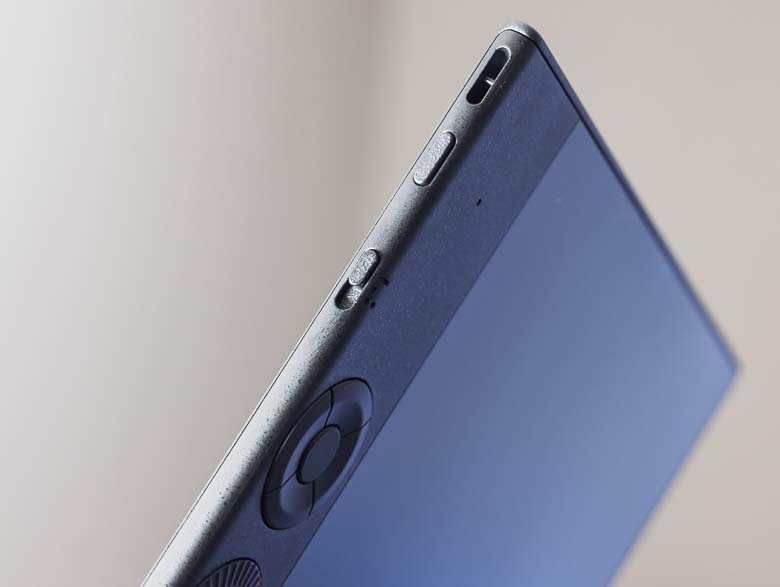
On the top edge we have a power/pairing button as well as a device switch. The first position for the switch is if you’re using it plugged into a PC with the USB wire. The second and 3rd positions are for Bluetooth wireless connections.
Pressing and holding the power button will turn the device on or pressing and holding it again for a longer amount of time (in Bluetooth mode) will turn on pairing mode. When I first started using the Wacom Intuos Pro M, pressing and holding to turn it on would often also go into pairing mode and delete my previously paired connection. It seems that running a firmware update through the Wacom software has fixed that, as I no longer can reproduce that problem. So be sure to install the updates when you get yours!
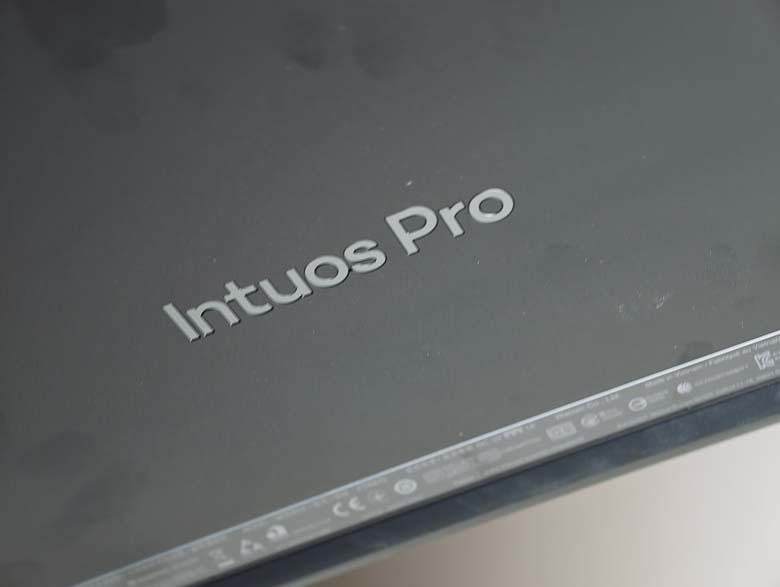
On the back we’ve got a really nice embedded “Intuos Pro” logo.
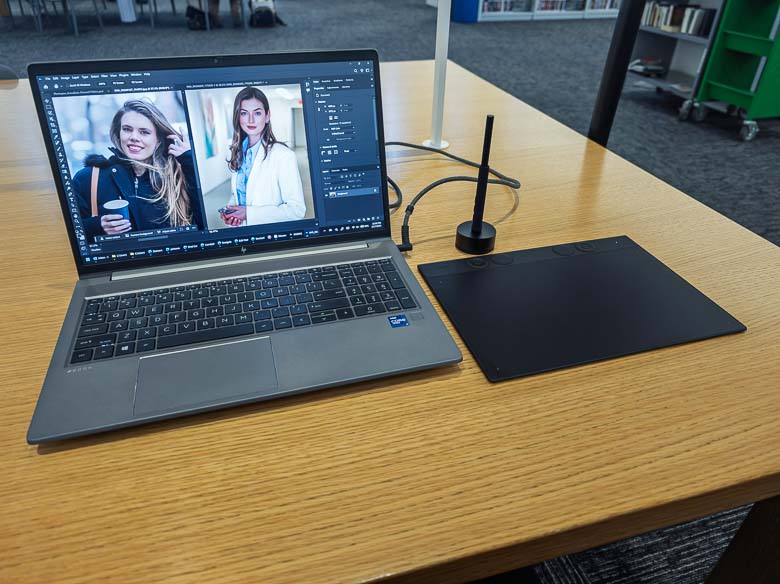
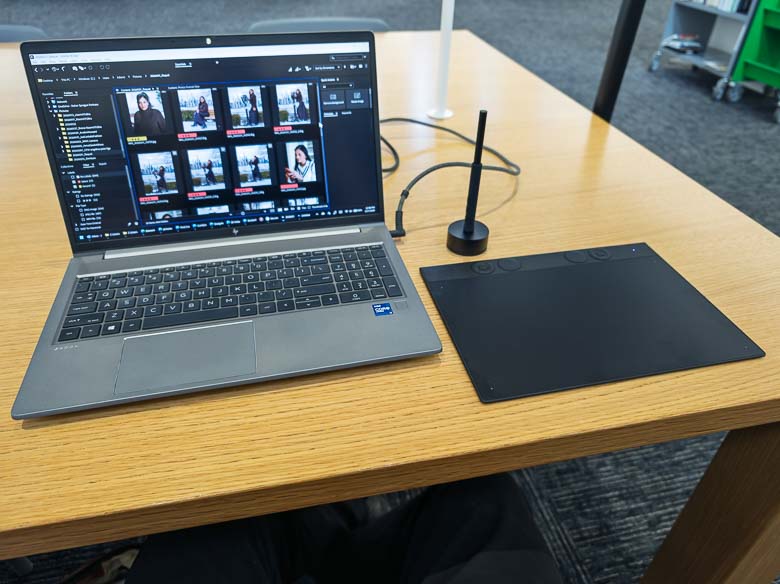
On a desk, the Intuos Pro looks really good. It’s just a thin black panel with a pen. No wires or clutter needed.
Comparisons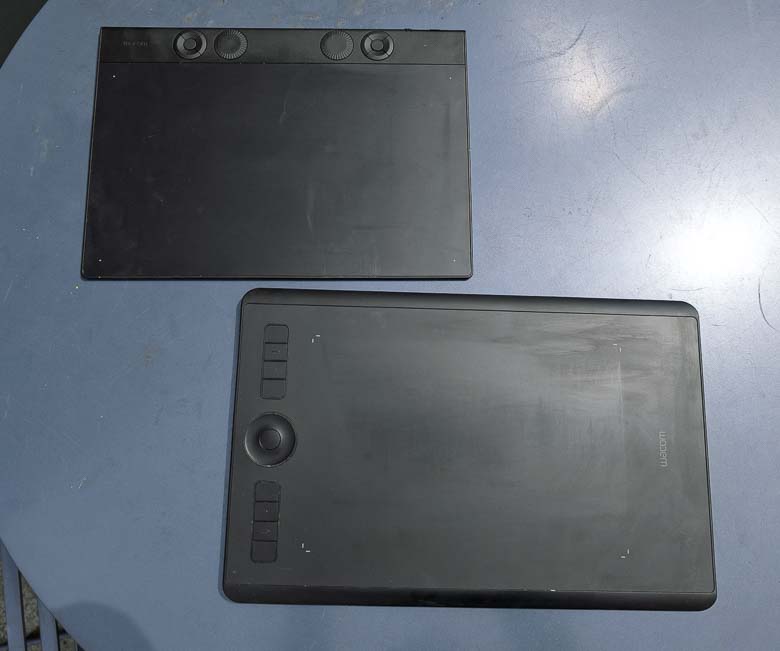

The Wacom Intuos Pro M from 2017 is a lot different from the new 2025 version. The 2025 version is thinner and much lighter with much smaller overall dimensions while still keeping the same dimensions for the active area. This was done by reducing the width of the bezels around the edges, which is certainly great for making it all more portable, but from a usability perspective the extra wide palm rest on the side made the right edge of the active area (if I’m using it right handed) much easier to use since I had a flush surface to rest the palm and stabilize my pen movements. With the new one, there’s no palm rest area; it just drops off. The 2017 version also had a more comfortable layout of programmable express keys that could be accessed by my non-dominant hand while holding the tablet. Some people have made 3D printed attachments to extend the bezel and create a palm rest area for the 2025 Wacom Intuos Pro M so that it’s more comfortable to use.
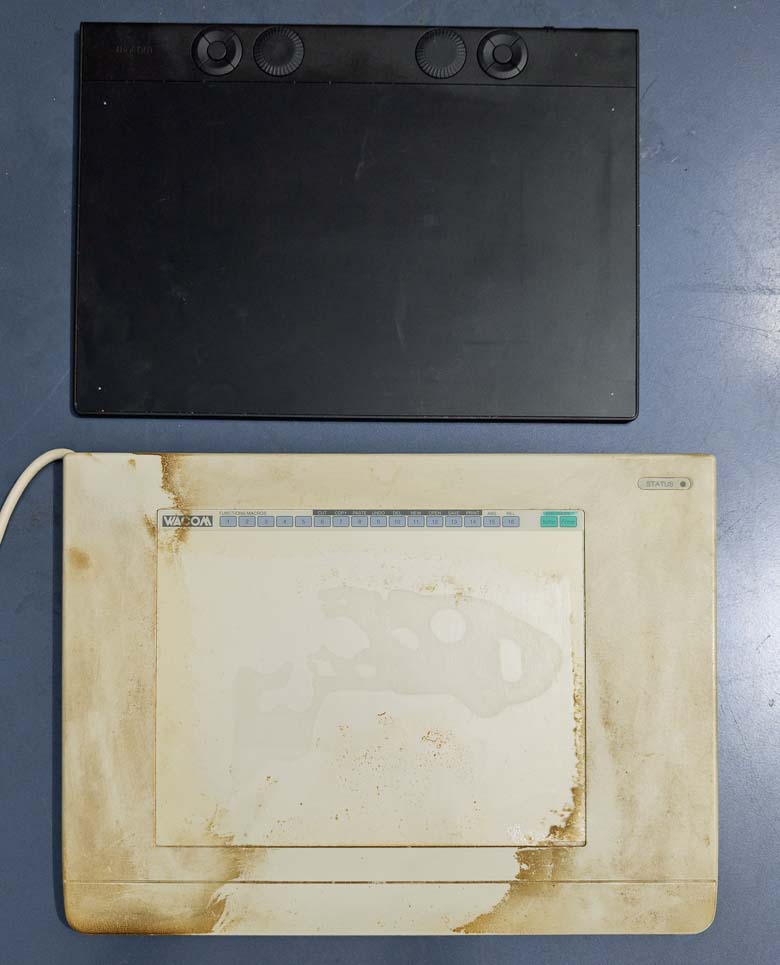

I also dug out my Wacom Art Z II 8×6″ graphics tablet from the late 1990’s as that was my first “medium” sized Wacom tablet (after falling in love with the smaller art pad when that was the only one I could afford as a teenager.) It’s not easy to clean. The Art Z II graphics tablet had a row of flat buttons at the top that were all pre-programmed and labeled so I could tap the ones I wanted with the pen right there. The active area also had a flip-up plastic piece that could hold a sketch or printed paper that I might want to trace or just leave there as a decoration. Of course the old Art Z II was much thicker, heavier, and even had a permanently attached serial cable who’s opposite end also had a power plug. My how times have changed!
Wacom Pro Pen 3
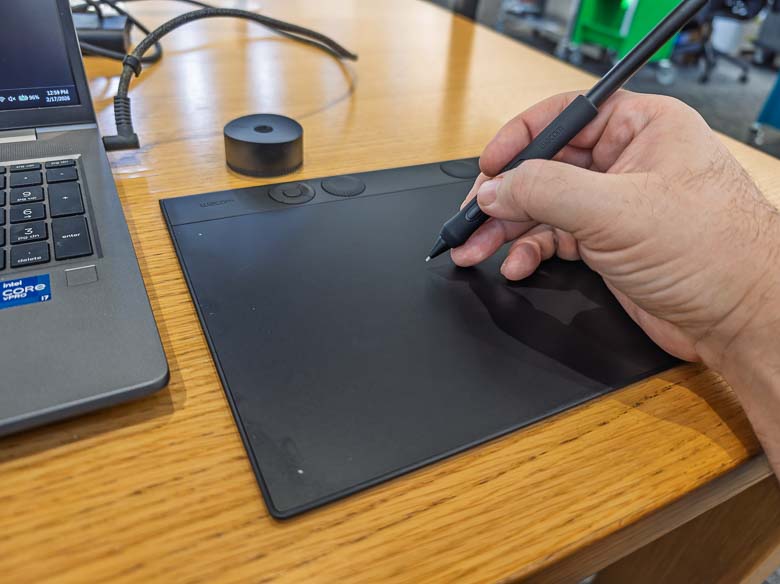
I like the Pro Pen 3 a lot, especially the version that comes with the Intuos Pro since the version that comes with the Wacom Movink does not have the rubber grip. I miss the eraser on the opposite end a little, but using a barrel button as an eraser is technically better since you don’t have to spend all of that energy flipping the pen around; all you have to do is hold the button while keeping the same grip on the pen.
In working with the pen, it feels just as it should; smooth and accurate. This is what I always expect from the Wacom pen tablets and tablet displays and they are far superior to the N-Trig Microsoft pen technology that often gets built into other products.
Software
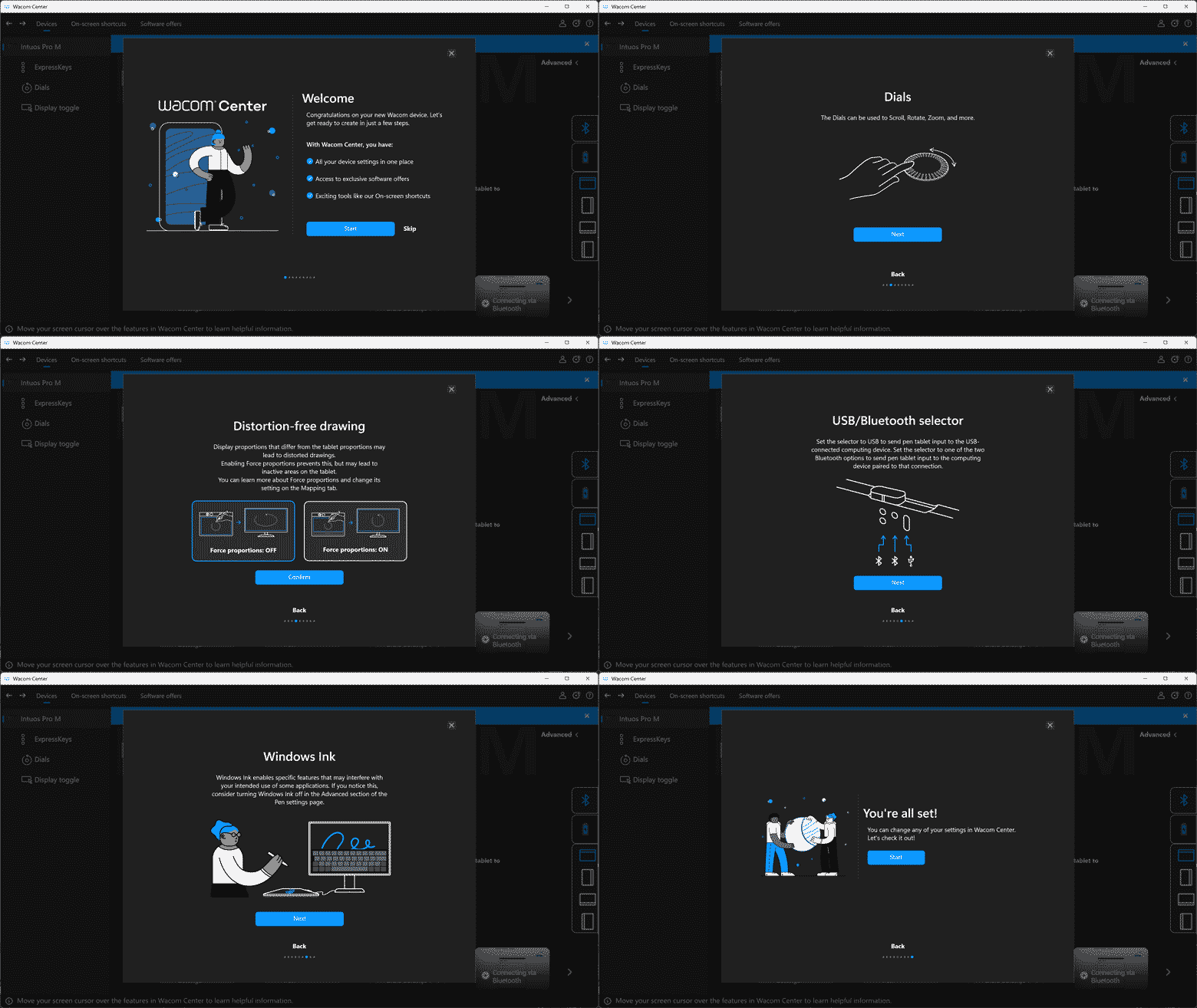

The software setup shows a slideshow of numerous tips to help you understand what the software can do, how to control the hardware, and even a recommendation for disabling the awful “Windows Ink” implementation that Microsoft added with Windows 10’s Fall Creator’s Update 2 that broke so many traditional pen user interface functions. I also recommend that, but Adobe Photoshop happens to work better with “Windows Ink” enabled and you can do that on a program by program basis in the customization settings.
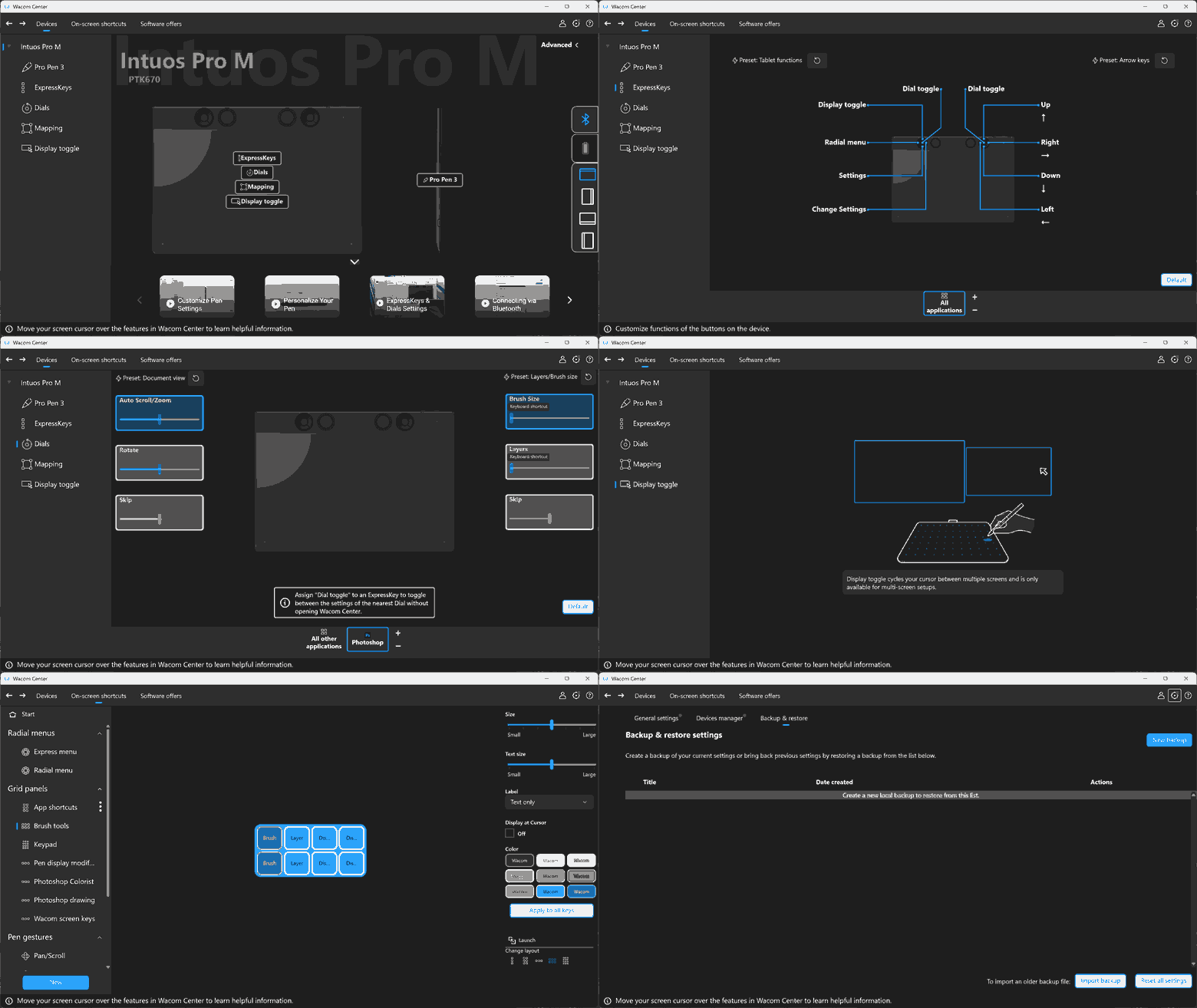
The Wacom driver software itself is extremely robust. A huge variety of functions are available to assign to each express key, dial, pen barrel button, etc. You can even create your own on-screen custom button panels which can be activated with a programmable hardware button and then accessed with the regular mouse pointer. This lets you create whole radial lists or grids of programmed functions for each program that you use for very quick and easy access to your most important functions without having to use the keyboard or navigate menus. It’s all extremely useful!
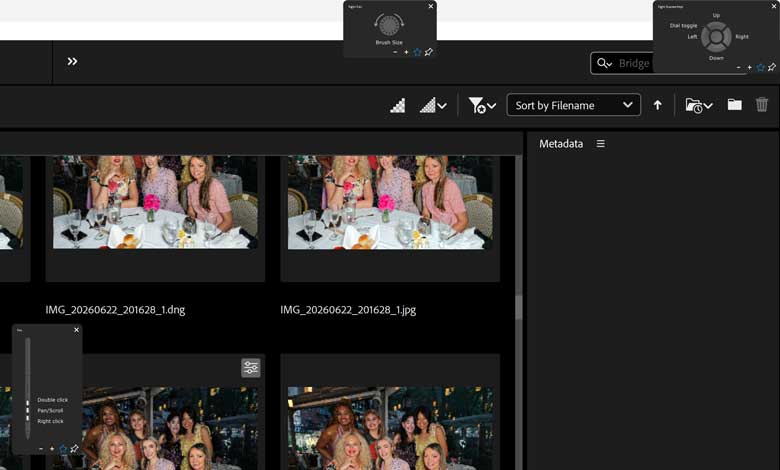

One of the express keys defaults to showing the settings for the express keys on screen when pressed. All of the express keys will also do an overlay on screen when pressed, showing the labels and lists of what they are programmed to do. Unfortunately, this overlay does not respect the display scaling levels of the operating system which means their text is going to appear extremely tiny and unreadable if you have a screen with a higher pixel density.
Of course the Wacom Intuos Pro works beautifully with every software program you can through at it. The software is so customizable that you can make it do practically anything you want. There are a couple gotcha’s though. As previously mentioned, you may want to set the “Windows Ink” setting to automatically enable when using Photoshop. There may be similar tweaks for other graphics programs depending on what you’re using.
Another annoying thing is that the middle barrel button is assigned to a “scroll/pan” function by default and while I thought that might be nice to have instead of using dials or moving the pointer all the way over to a scrollbar; the function is dreadfully unreliable in use. It only works if you press the barrel button before you touch the pen to the tablet and start moving; even if the Pen Button Mode > Hover Click is turned on. Also, the “scroll/pan” function is dreadfully inconsistent and behaves kind of differently on every scrollable window. Sometimes it moves fast, sometimes slow, sometimes it jumps to a completely different part of the page. The jumping happens if you’re moving the pen tip across the tablet surface and the press the button to activate scrolling; in that scenario it will jump to whatever area you might have started the pen moving from. I recommend just assigning that middle barrel button to something completely different and ignoring the default scroll/pan function for now, but Wacom knows about this bug and a future software update will probably fix it. The bug has probably been there for decades though and I never noticed it because I always only had 2 barrel buttons on the pen instead of 3.
Pros/Cons
Pros
- Incredibly thin and light
- Wacom software provides hugely robust customization options
- Programmable express keys for improving your work efficiency
- Excellent pen accuracy, feel, and performance
- Sturdy build quality
- Multiple connection options (Bluetooth, dongle, USB cable)
Cons
- Narrow bezel provides very little palm-rest area
- Wacom’s scroll/pan pen function can be erratic
- Non-removable battery
- Price may feel a bit high compared to lower quality competitors
- Express key settings overlay does not scale with display scaling system preference
Conclusion
While the Wacom Intuos Pro introduces some problems like the unergonomic positioning of programmable hardware keys and dials, it’s also got some excellent new features like the greatly reduced form-factor which beautifully improves portability. I love that the Intuos Pro is so thin and small that it can go into a laptop back right next to the laptop and be barely noticeable. If you’ve got a powerful graphics editing laptop, connecting the Intuos Pro turns it into a professional level workstation without sacrificing the portability.
Guest model appearance by Brana Dane and Anna Zaia.