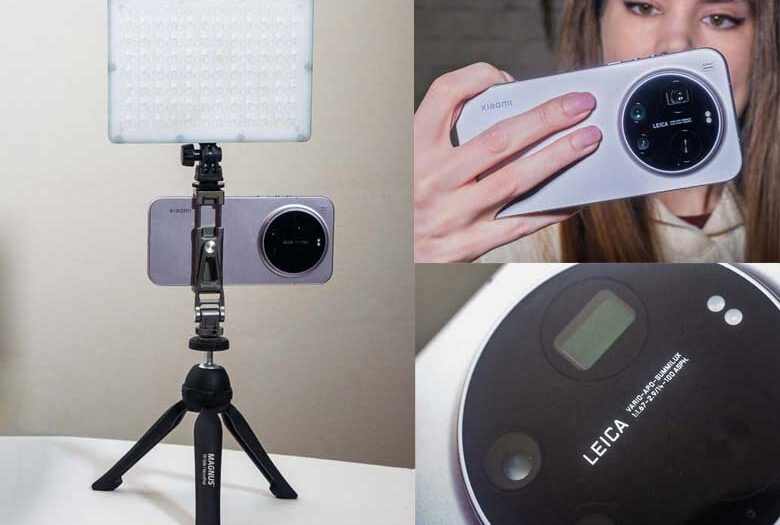
The Xiaomi 17 Ultra has one of the best smartphone camera arrays of 2026 which makes it pretty amazing for photographers. The Leica Leitzphone version comes with some compelling accessories for photography as well, but in my opinion there are some better accessories out there.
Having a tripod mount and cold shoe mount for lighting equipment is extremely important for smartphone photography since the smartphones never include those things. The SmallRig mount is nicely adjustable with two cold shoe mounts, a tripod mount screw hold, and it can even be mounted to another camera’s cold/hot shoe.
The Camera hump on the back of the Xiaomi 17 Ultra is perfectly circular with a 58mm diameter. That means any 58mm push-on lens cap will work as excellent protection from fingerprints and scratches. Do NOT get the pinch clip style or screw one versions though, only “push on”.
While the Xiaomi 17 Ultra does have wireless charging, it does not have magnets for keeping a charging cable attached. However, you can get a case with the magnetic attachment in order to enable those Magsafe chargers.
For photography, lighting is very important. Most phones only have tiny LED lights that don’t do much, so I like to get an extra LED panel to really have some more control over the lighting.
This one is much more pocket friendly than the 7×5″ panel. It has a non-removable built-in rechargeable battery which keeps the size smaller but means less longevity. If I don’t want to carry a bag of gear at all, this light in a jacket pocket along with the Xiaomi 17 Ultra in another pocket, and a SmallRig camera mount is pretty perfect.
I’ve also got a big 12×12″ LED light panel that I can mount on a light stand for portable battery powered off camera lighting. Setting this up next to a model outdoors and using the Xiaomi 17 Ultra’s 75mm 200Mp lens makes for some pretty awesome portraits.
Hands on with the Samsung Galaxy Z Fold 8 and Z Fold 8 Ultra
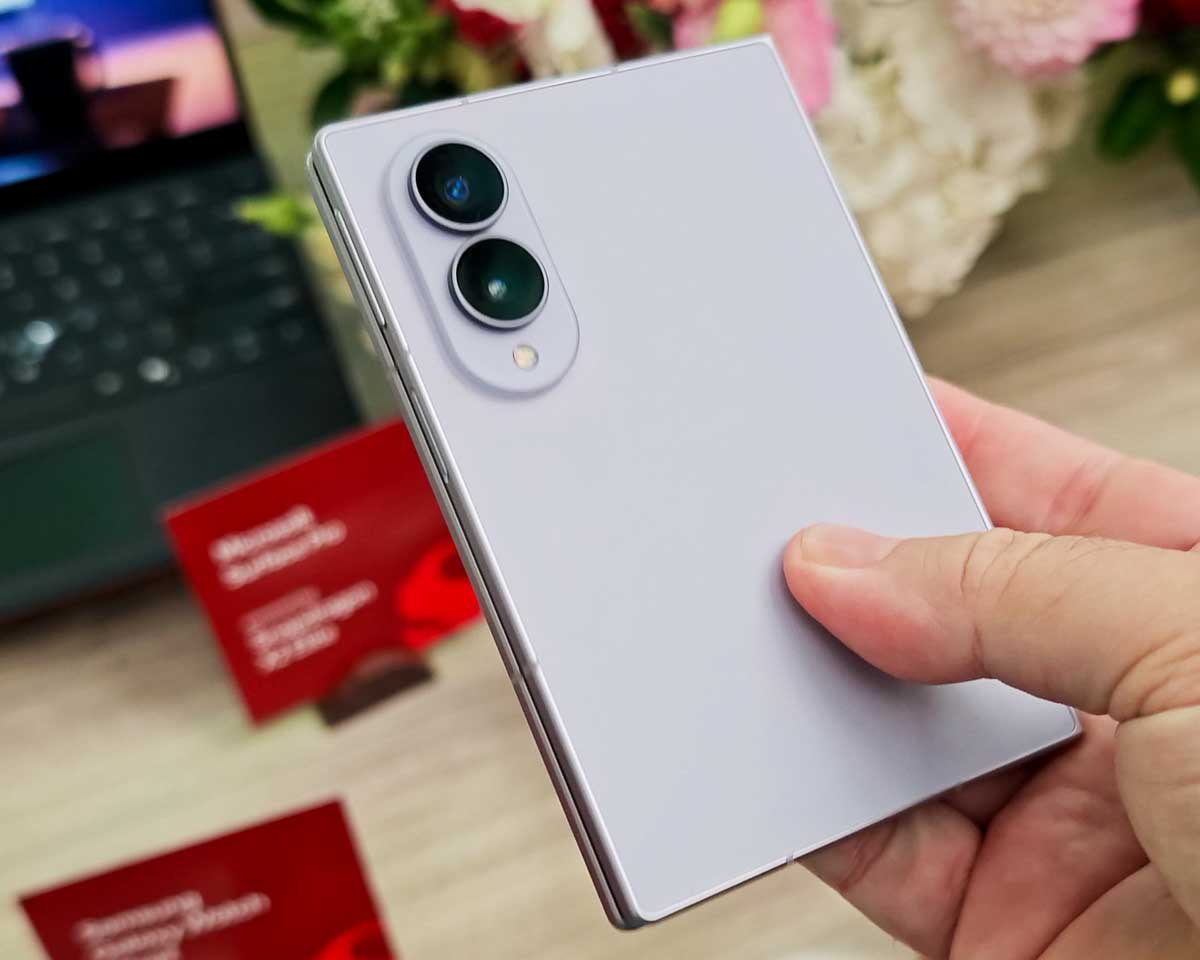
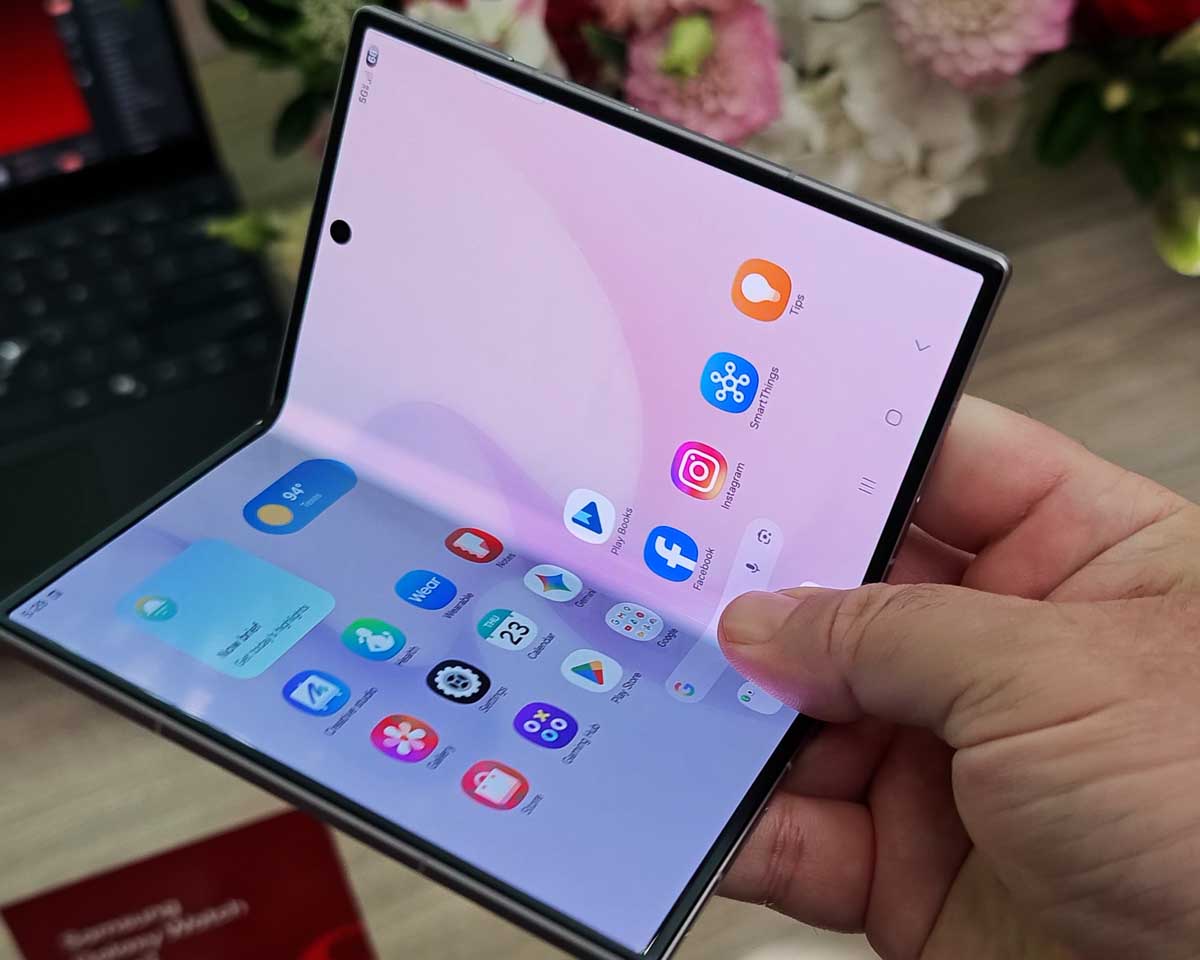
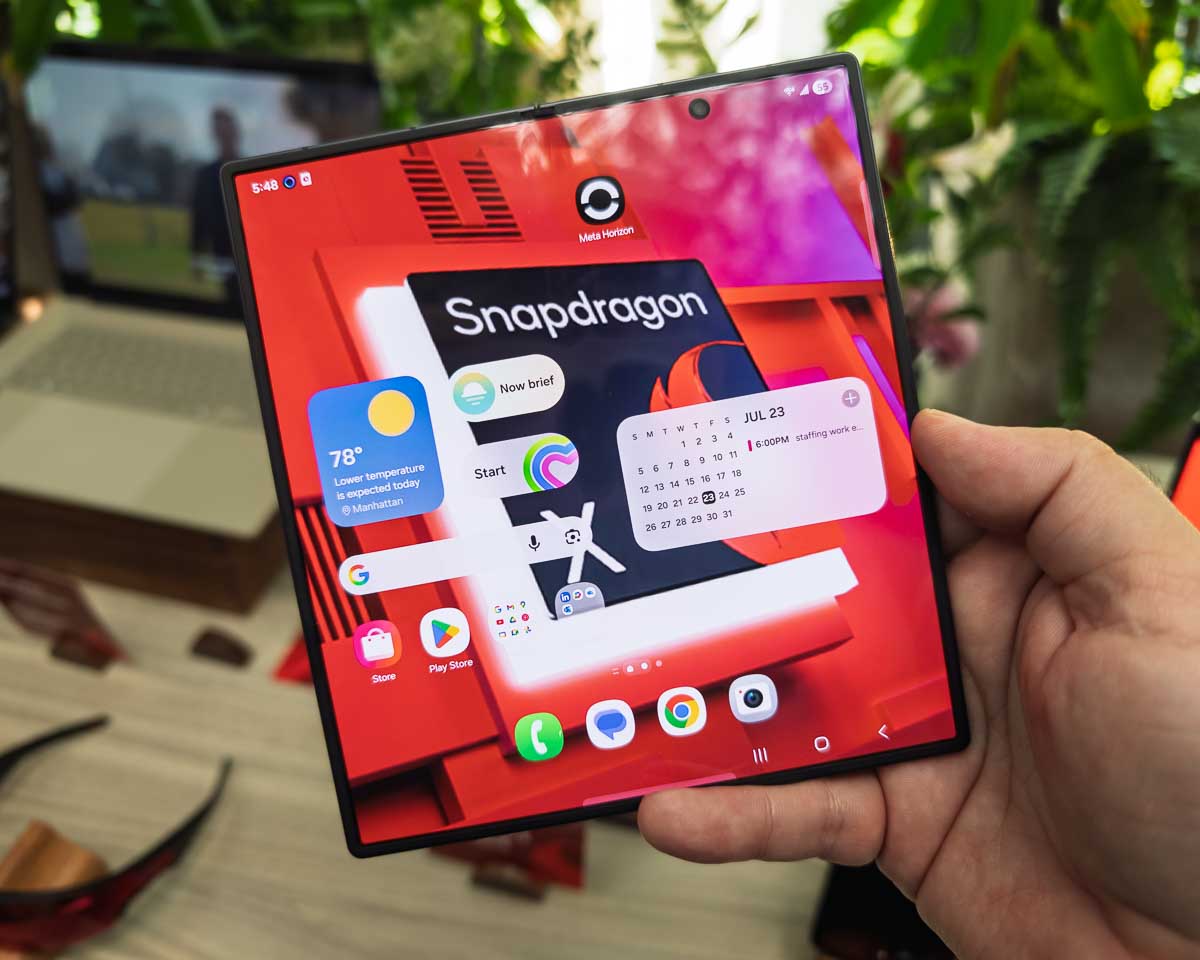
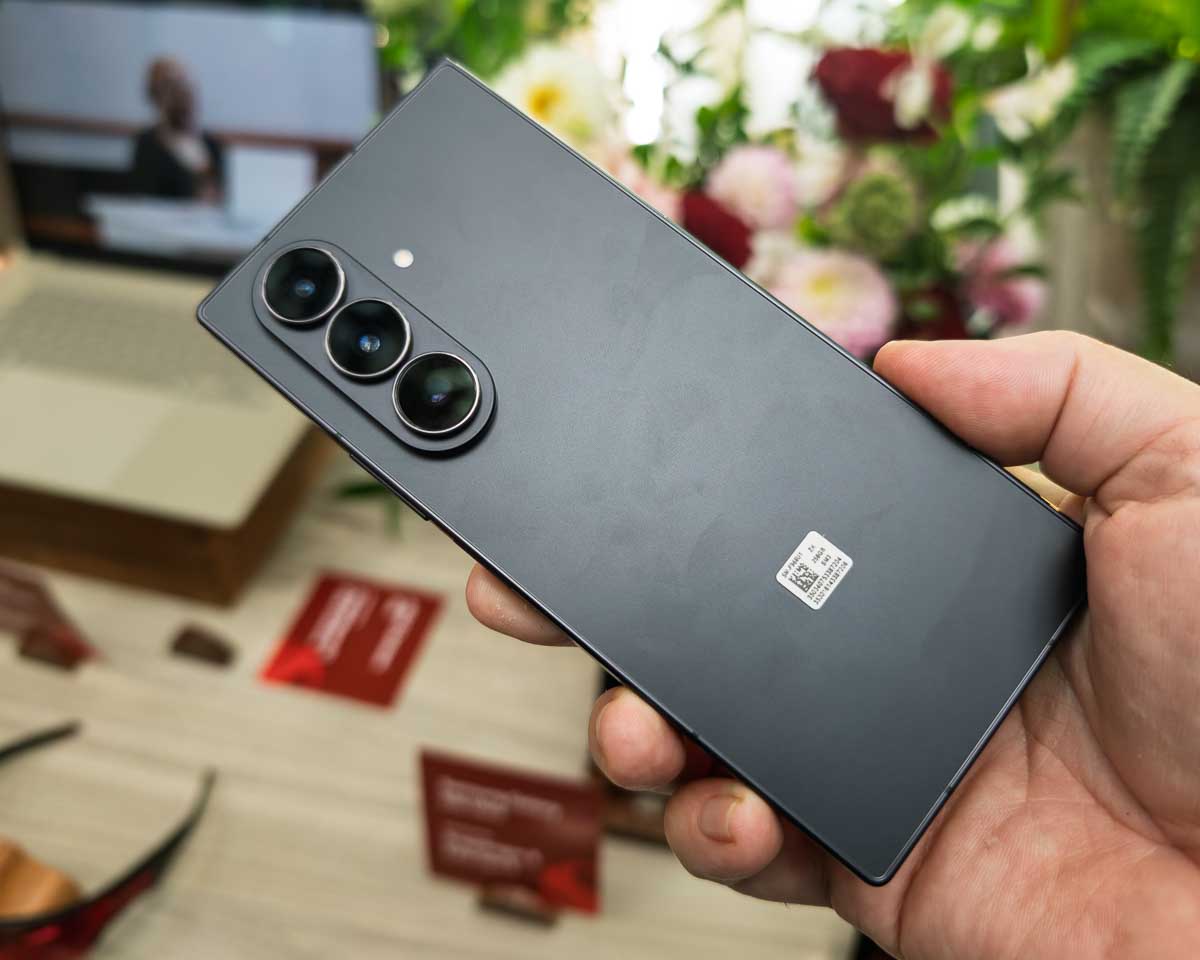
The big new from Samsung’s Galaxy Unpacked 2026 event is a totally new form factor for the Galaxy Z Fold 8. If you love the previous form factor, don’t worry, the Galaxy Fold 8 Ultra still uses their normal book-style folding screen along with the more portrait oriented closed aspect ratio. The Galaxy Fold 8 though, has a wider more square like closed aspect ratio that opens to a really nice wide-screen aspect ratio.
The Galaxy Z Fold 8 feels a lot like the old Microsoft Surface Duo with its more pocket notebook style form factor. The Z Fold 8 is certainly thinner and lighter though. We’ve got a nice dual camera array on the back with 50 megapixel wide and ultrawide angle cameras. The “Armor Aluminum”, flex titanium screen backing, and “Armor Flexhinge” make it all feel very strong and durable. Yet, it’s still very lightweight at only 201g.
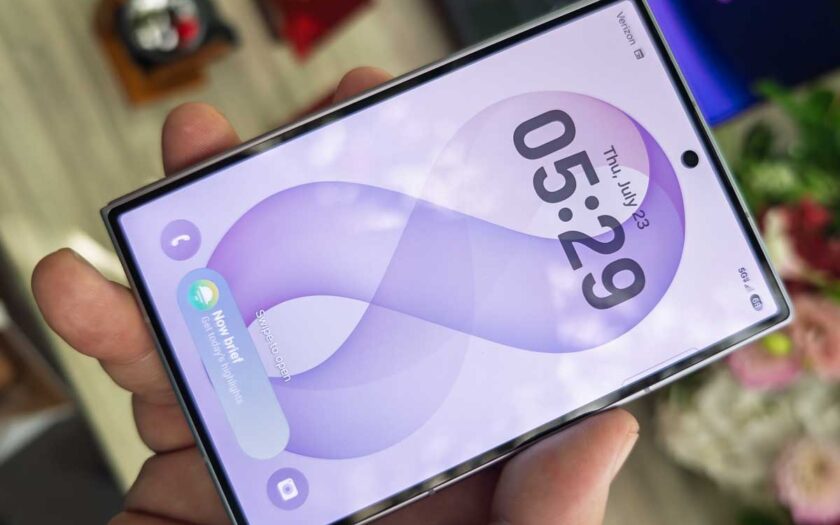
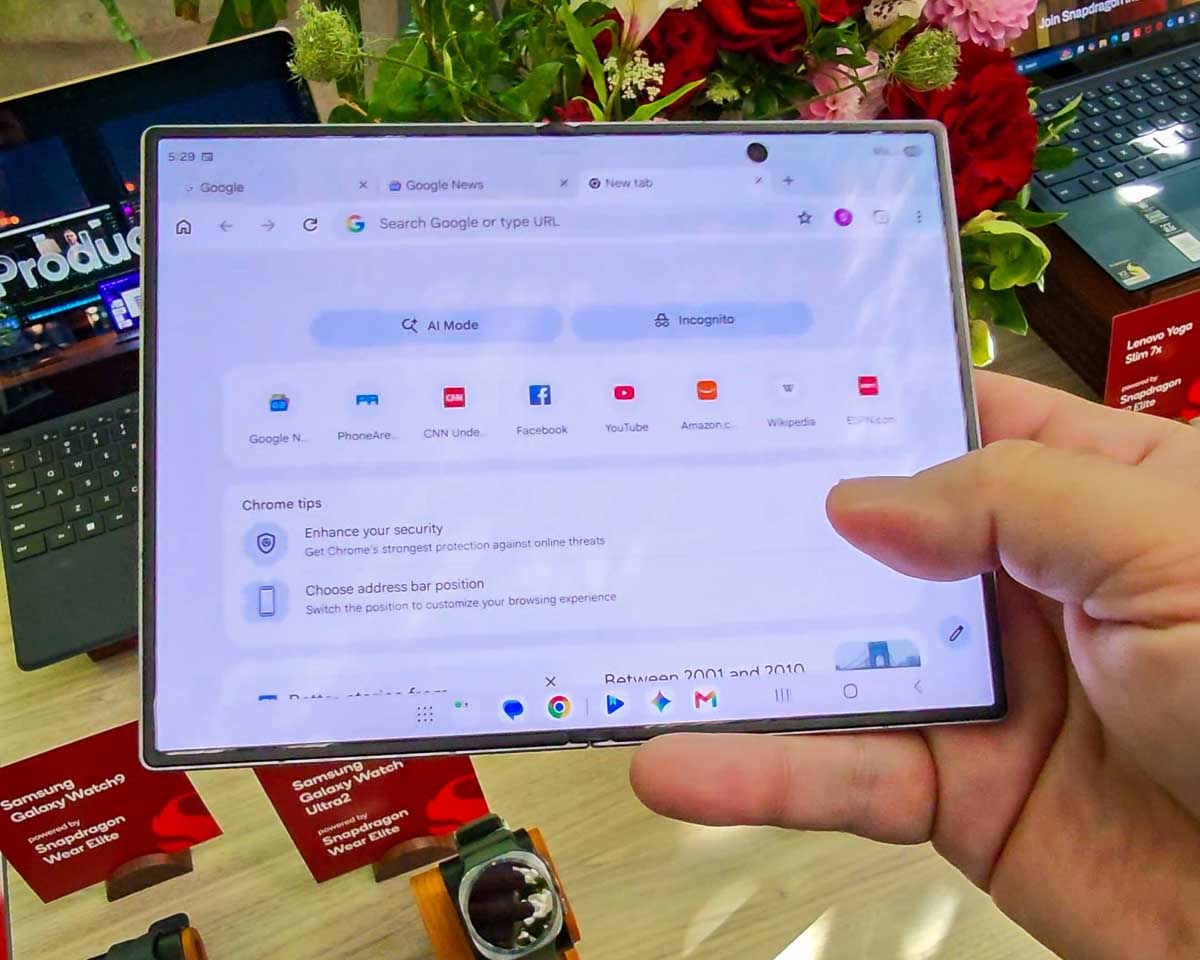
Unfolded, the inner screen has a comfortable 4:3 aspect ratio, which again feels great. The crease in the middle of the folding screen is barely visible when opened. For some weird reason, the Android navigation buttons on the bottom right change positions depending on if you have an app in the foreground or the home screen. They move just a little bit vertically which is just enough to be annoying at the inconsistency.
The folding is super sturdy. Samsung has really perfected folding screens after 8 years or so.
The external display has a 10:16 aspect ratio which is pretty rare with Android phones, but I think I like it a lot.
Samsung Galaxy Z Fold 8 Ultra
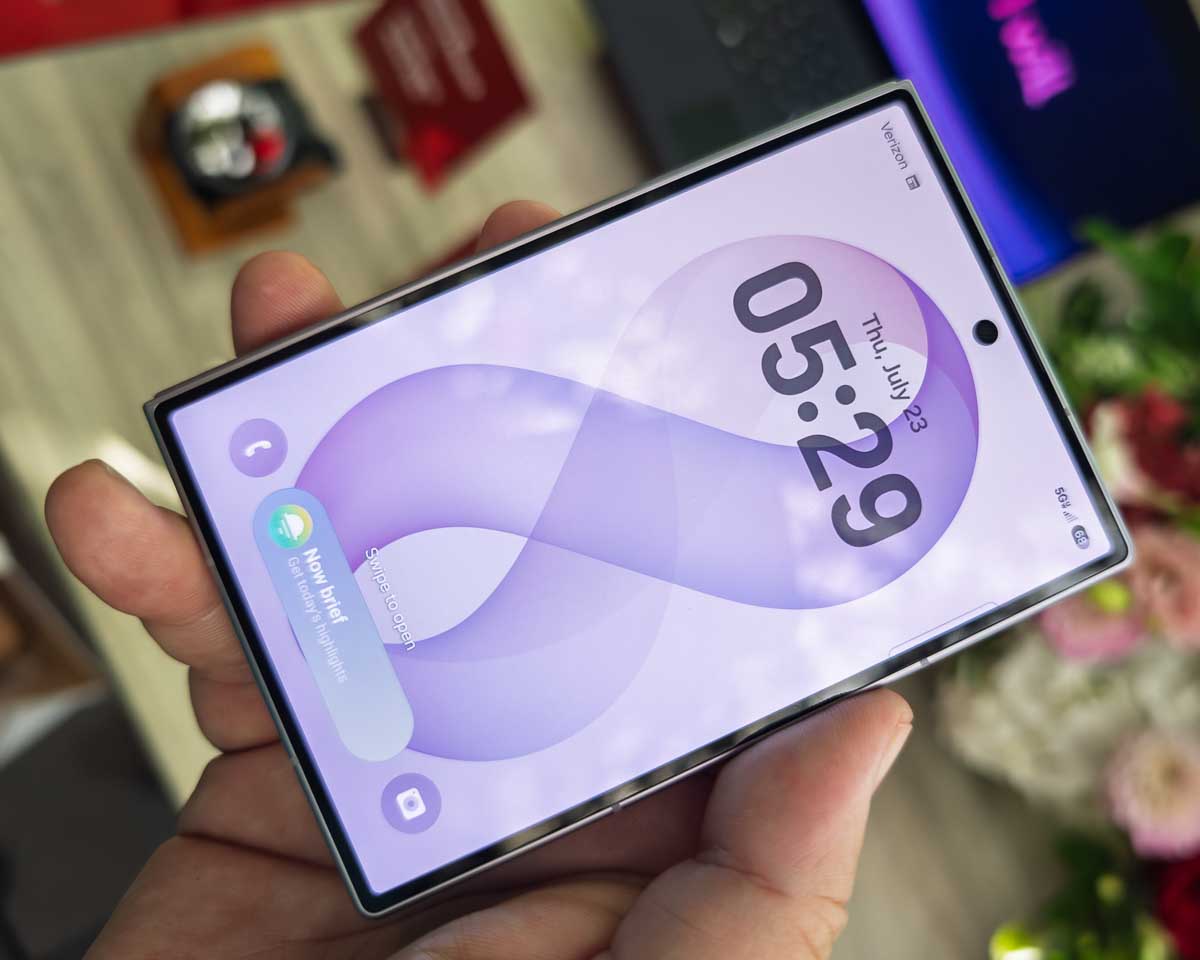
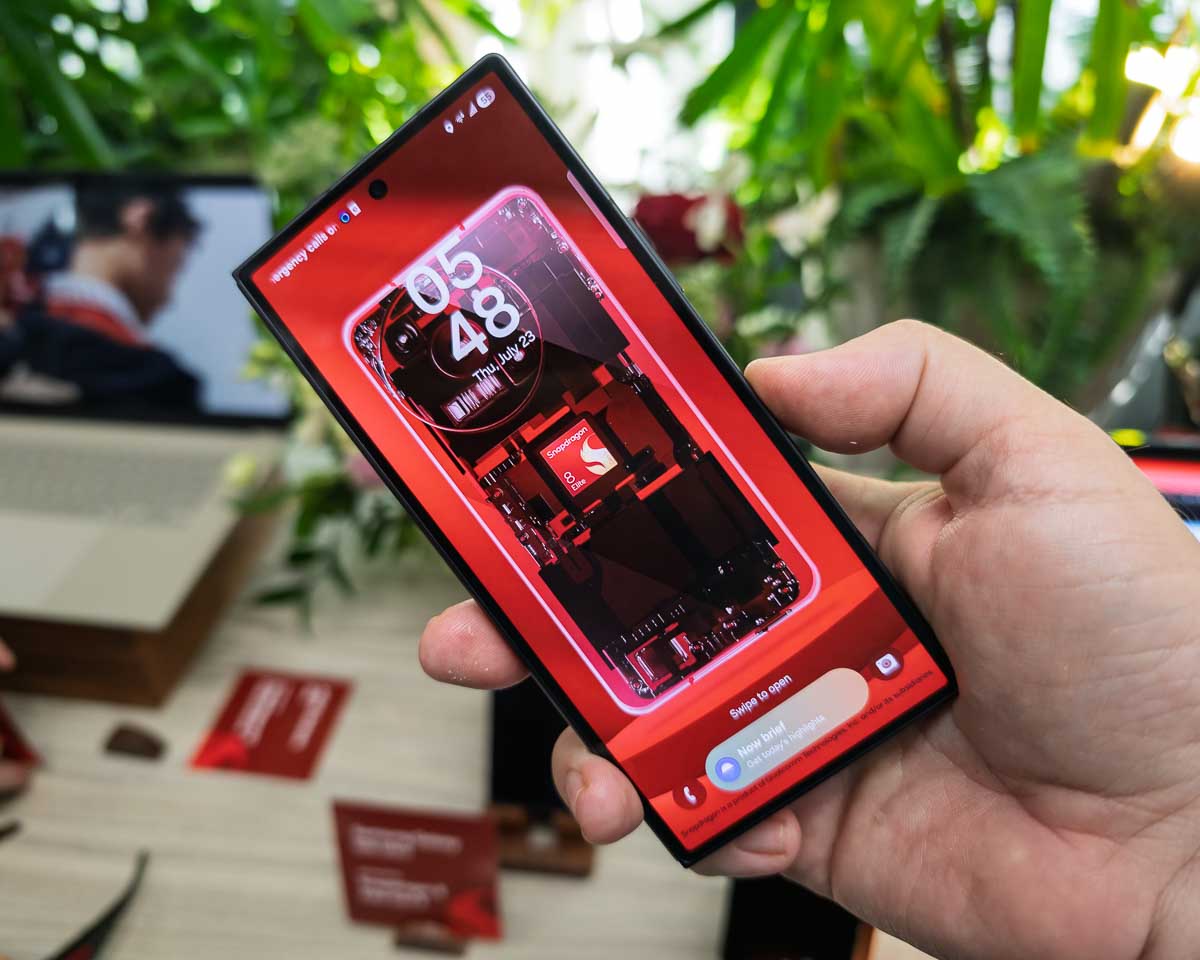
Now, if you’re really a fan of the old Galaxy Z Fold form factor with its portrait-style external screen and more book-style internal folding screen, don’t worry. The Galaxy Z Fold 8 Ultra is the one you’re looking for.
This is the Samsung Galaxy Z Fold form factor that we’re used to. The external screen hardly has any bezel these days, unlike the first generation of the Galaxy Z Fold. The Z Fold 8 Ultra is also a lot thinner now at only 4.1mm and it’s only 215g in weight just like the Z Fold 7.
The internal screen looks great. Even though the whole device is a little thinner than the previous generation, we do have a new larger capacity battery with 5000mAh instead of 4400mAh. That should provide about 27 hours of video playback instead of the Z Fold 7’s 24 hours.
The cameras have been nicely upgraded on the Galaxy Z Fold 8 Ultra as well. The main wide angle camera has a 200Mp sensor. The ultra wide angle camera has a 50Mp sensor, and the 3x telephoto camera has a 10Mp sensor. The external display has a 10Mp camera in the punch hole, and the internal folding display has another 10Mp camera in the punch hole.
I didn’t have time to test these very extensively, but it looks like all of the rear cameras are able to output to RAW DNG formats, which is great. The portrait mode options looked a bit inaccurate though with the depth masking.
What do you think of Samsung’s new Galaxy Z Fold 8 series for 2026?
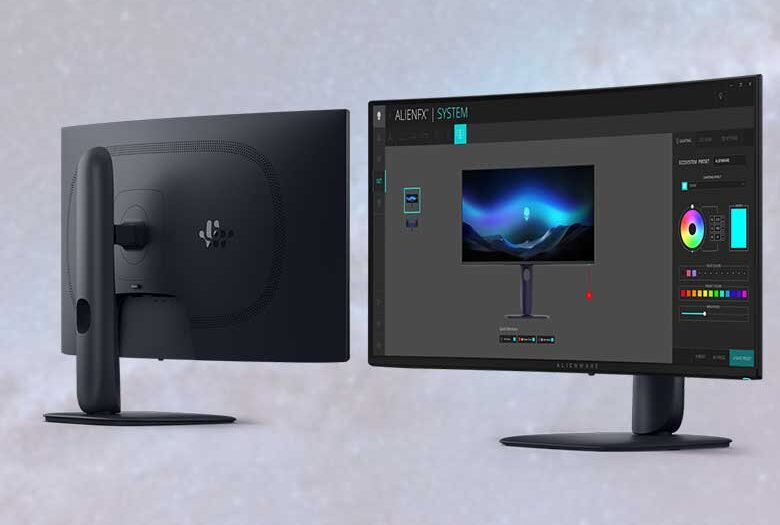
Now Available: Four New Alienware Gaming Monitors for 30th Anniversary: AW3926QW, AW3426DW, AW3426DWM & AW3226DM
Alienware is celebrating its 30th anniversary with the launch of four new gaming monitors at Computex, featuring a flagship OLED model and more accessible options designed to elevate the gaming experience.
The AW3926QW serves as the flagship of the lineup, featuring the world’s first 39-inch 5K OLED panel with RGB stripe tandem technology to achieve up to 1,300 nits of peak brightness. The monitor utilizes a dual-mode design that offers 5K at 165Hz for cinematic immersion or 1080p at 330Hz for competitive responsiveness, all while maintaining VESA DisplayHDR True Black 500 and Dolby Vision certification. It includes comprehensive connectivity options like DisplayPort 2.1, HDMI 2.1, and a built-in KVM switch, backed by a three-year burn-in warranty.
The AW3426DW represents an evolution of the brand’s iconic 34-inch QD-OLED ultrawide, utilizing Penta Tandem technology to achieve up to 1,300 nits of brightness and a 280Hz refresh rate. The new anti-reflective coating reduces glare by 30%, while the panel supports VESA DisplayHDR True Black 500 and Dolby Vision for enhanced HDR performance. This model maintains a 0.03ms response time and includes NVIDIA G-SYNC Compatible validation and AMD FreeSync Premium Pro support.
The AW3426DWM offers premium performance at a more accessible price point, featuring a 3440×1440 WQHD VA panel that runs at 240Hz with a 1ms gray-to-gray response time. It supports AMD FreeSync Premium, Dolby Vision, and VESA DisplayHDR 400, while also including TÜV-certified low blue light hardware to reduce eye strain. Priced at $399.99, this monitor is designed for gamers seeking a meaningful upgrade without a flagship price tag.
Alienware 32-inch 240Hz Gaming Monitor (AW3226DM)
The AW3226DM provides a budget-friendly option for premium performance, pairing a 2560×1440 QHD VA panel with a 240Hz refresh rate and 1ms response time. Equipped with AMD FreeSync Premium, Dolby Vision, and VESA DisplayHDR 400, it ensures smooth, tear-free gameplay and rich visuals. At $299.99, this 32-inch monitor is accessible for gamers looking to enhance their setup with high refresh rates and thoughtful design features.
While it’s still the global standard for electronic messaging, a lot of people have misconceptions about email. Some say that it’s inherently insecure, but in reality, there’s nothing inherent about email at all. It’s a completely open standard that is continuously evolving and growing, just like the world wide web, roads, human language, and all life on Earth. When it comes to the World Wide Web, usually the web browsers push the standards forward. Most web browsers will practically block websites that don’t implement transport layer security these days. Email providers generally aren’t as well organized when it comes to keeping up to date on the latest standards and security capabilities. So, we the people, may have to remind them sometimes by complaining to tech support or switching to better services.
It’s pretty easy to check up on your email service and see if they’re doing their job of keeping up to date or if their IT team really hasn’t done anything in 15 years and is just comfortably collecting your subscription fees. Here are a few tips to see if your email service or your self-made email server are doing things right.
It’s great that we CAN audit email servers
First of all, I’d like to point out that even though some email servers out there are really poorly configured and outdated, the fact that we are actually capable of calling them out is a huge advantage. If everyone were using centralized messaging services like Whatsapp, iMessage, Google RCS, Telegram, Signal, etc. we would have no way of verifying that those systems are doing what they’re supposed to be doing. The fact that we can see how email works is a huge win for democratic, private, and secure communications. See: How to tell if it’s trustworthy.
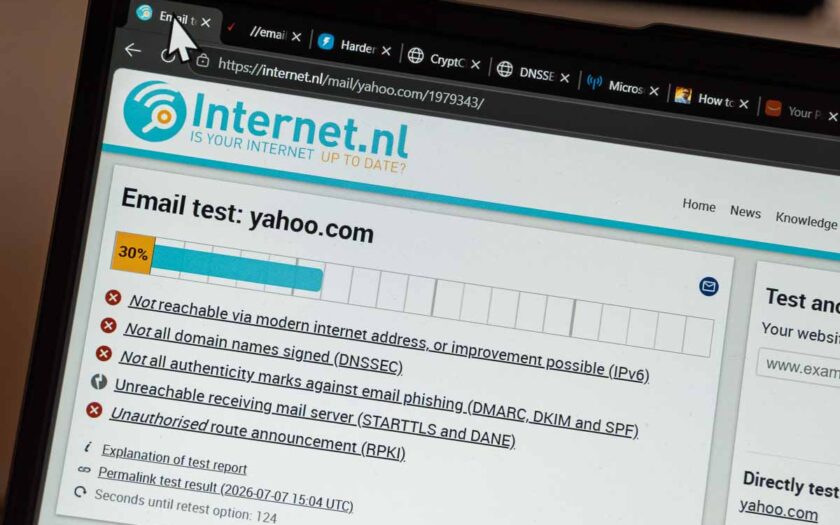
If you put your email account’s domain name into the Internet.nl test, it will test several protocols and connection systems to see how your server responds and which aspects it supports. This test gets updated periodically as well as new “best practices”, protocols, security mitigations, and encryption ciphers become available.
For example, I was able to get some of my servers to a 100% score on the test a few months ago, but then new encryption ciphers became available, the test was updated, and my score dropped to 97%. That means I have more work to do now.
Besides giving you a score, that test also outlines every little thing that it tests and provides some description about why it might be bad if your server doesn’t support certain things. For example, if your server still uses very old versions of the transport layer security (TLS) standard, it is probably vulnerable to attacks. The test also looks at other attack mitigation protocols like DANE which can prevent certain “man in the middle” attacks.
If you’re using Gmail and think that it’s a great email service, you may be surprised to see its test results are actually kind of low on here with some pretty major security vulnerabilities in their old TLS 1.0 implementations, old encryption ciphers, and lack of DANE support.
If you’re using Microsoft 365, not all of the modern security features are enabled by default, but there are PowerShell commands that you can use to switch your tenant to a more modern Exchange server that does have support for things like DNSSEC and DANE.
One of the most modern email service providers is Soverin now at 100%.
Providers like ProtonMail and Tuta, that are always bragging about security and privacy, are only around 80% (though still much better than Gmail).
Apple likes to brag about being awesome at security too, but their iCloud.com email service has a pitiful 47% score while their corporate email on Apple.com is even worse with a 34% score!
If you want to see some really really bad email server test results, check out Yahoo.com and AOL.com with their scores in the 30s.
This test involves sending an email to a specific address. Once the message is received, the web page test results will appear and show you all sorts of information. This test will show a lot of things that the internet.nl test already covers but also includes more about whether your actual emails are complying with marketing email standards like a one-click unsubscribe function and HTML accessibility best practices.
This test will also reveal hostname mismatch mistakes in case you didn’t set the hostname on the server to be the same as the hostname specified in DNS and the hostname specified in the PTR record.
This one isn’t really a scanner as you can’t put your own domain in and check it, but they have a list of email providers that they’ve tested and published results for. As you can see, Gmail doesn’t pass this one either and neither does Apple.
Above are several more online tests that you can run on your email server to see if it correctly supports all of the latest security protocols. They overlap a lot with the internet.nl test and don’t always have great explanations as to which things are good to have and why, but if you want to get more technical, they’re good to take a look at.
Is your server on a “Realtime Blocklist” (RBL) and getting blocked by certain other servers? If yes, that might mean that your service/server is really badly behaved. It could be sending tons of spam and/or has very outdated configurations that make it susceptible to becoming a bad actor. Or it might mean that your IP address is within a range that contains other badly behaved mail servers. If your server has some configuration problems, usually you can fix those errors and then request to be removed from the blocklists and all will be ok. Some blocklists are a little scammy though and want you to pay money to be removed from the blocklist, but not many services use those, so it might not be worth worrying about.
These aren’t really as much about the quality of your email service as they are about if the emails you’re sending look like they’re spam. If you’re using your email for interpersonal communications instead of marketing materials then this isn’t much of a concern to you, but a lot of businesses do both, so before sending a newsletter to your clients or friends, you might want to make sure it passes these tests.
Following standards is good for everyone
While the World Wide Web has pretty nicely kept up to date with the latest security standards, electronic messaging communications still has some work to do. Email is the messaging system used by the entire population of the internet (which is about half of the entire human population of planet Earth), and keeping things secure and private should be a priority for us especially with so many other centralized proprietary messaging platforms trying to take away your freedom and monetize/control your private communications (See: Stop being naive when it comes to things like WhatsApp, Telegram, Signal, etc.).
DeerRun Apex Titan 1 adds online PitPat social games to exercise treadmills
DeerRun is launching a new flagship treadmill called the Apex Titan 1 to compliment their portfolio of other exercise treadmills including the Flex and Sleek series. These “smart” treadmills also include a “PitPat” app service which allows users to compete online in a series of games. The games are limited to what are available on the DeerRun app and are mainly racing competition games with no other controls other than the speed at which you can run on the treadmill.
The DeerRun treadmills are quite affordable, ranging from $149 to $1400, with a good number of models in the $300 range.
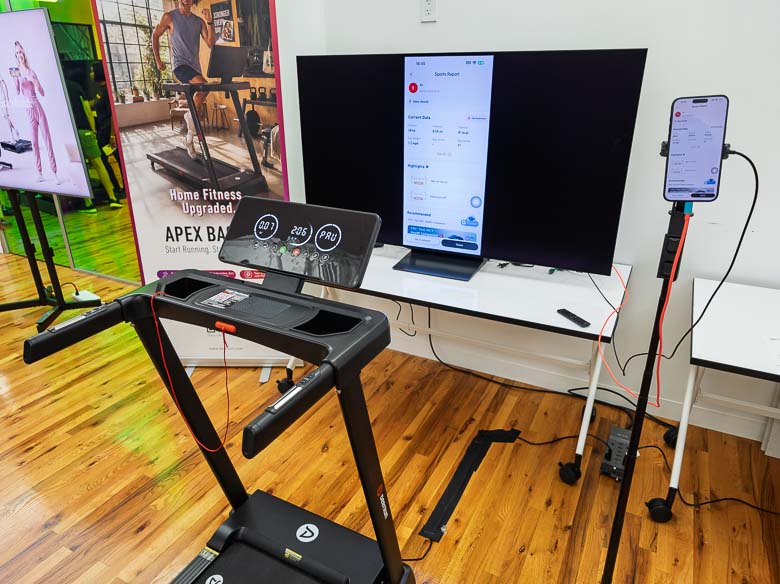
Shown above is a DeerRun treadmill connected to the DeerRun app running on a phone set up on a tripod to the right. The phone is also mirroring its display on a big flatscreen TV in front of the treadmill. This seems like an awful lot of setup and an awful lot of screens. The vertical phone screen app looks terrible on the TV since it’s only using maybe a 20% stripe of the display down the middle. It’s like looking through a keyhole. If this app was supposed to be displayed on a TV screen, it should have been designed with landscape mode compatibility in mind.
When a game is running however, the full landscape orientation of the phone screen is displayed on the large TV screen, so that’s good at least. The flagship Titan 1 treadmill already includes a big screen mounted to the front of it, but apparently this cannot be used for PitPat games. It only displays stats, which should probably also be displayed on the game screen. It seems kind of wasteful to have a big screen on the treadmill, a phone screen mounted to the side, and a big TV screen mounted in front. Why can’t all of this run on the screen that comes with the treadmill? Wouldn’t that make more sense? It must connect to the phone anyway in order to communicate the running speed. The press release says that these were “Built With PitPat, Not Bolted On”, but it certainly looks like it was just bolted on with some app on a phone that needs to be connected to a TV in order to play. At least make the screen built into the treadmill mirror the phone screen when the phone is plugged in.
Here’s another view of the DeerRun Titan 1 where two children are playing the racing game. A racing game for running is definitely something children would like, however as you can see above, the children are too short to see the video game on the TV screen in front of them. The big “stats only” screen built into the treadmill is blocking their view of the game. Again, why not put the game on the screen that’s built into the treadmill?
Despite not using the built in screen for games, the DeerRun Titan 1 is a pretty impressive treadmill and includes an incline motor that will raise the angle to up to 48 degrees. It also supports speeds up to 12.5 MPH (20 KPH), and a 400 LB maximum user capacity.
Wacom Intuos Pro M (2025) Review: Convert your boring computer into a graphics powerhouse
For the past 10 years or so I’ve mostly been using pen displays for graphics and retouching work… well, actually I like to use pen displays for everything. The Wacom Mobile Studio Pro was one of my favorite pen display tablet PCs, while working at a desktop I used the Wacom Cintiq a lot as well. However, back in the 1990’s those kinds of things didn’t exist, so I started with the cheapest 4×5 Wacom ArtPad graphics tablet (today’s “small” size) and eventually upgraded to the “medium” size once I started making money. Today, I’ve got the current 2025 model of the Wacom Intuos Pro M and it’s quite a nice upgrade from the medium sized graphics tablets of 25 years ago. Honestly, there are some nice advantages to using this type of graphics tablet with your computer as opposed to something built into the display like the Wacom Cintiq models.
Take a look at the above video for our unboxing of the Wacom Intuos Pro M for 2025.
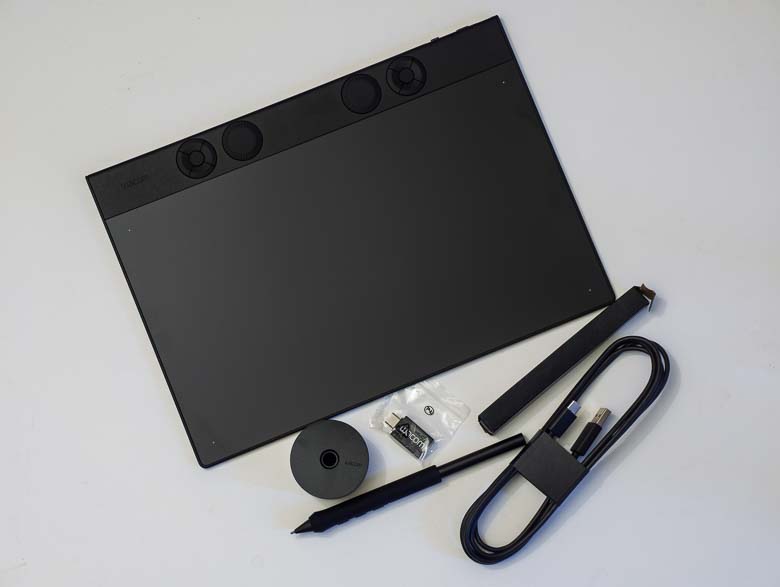
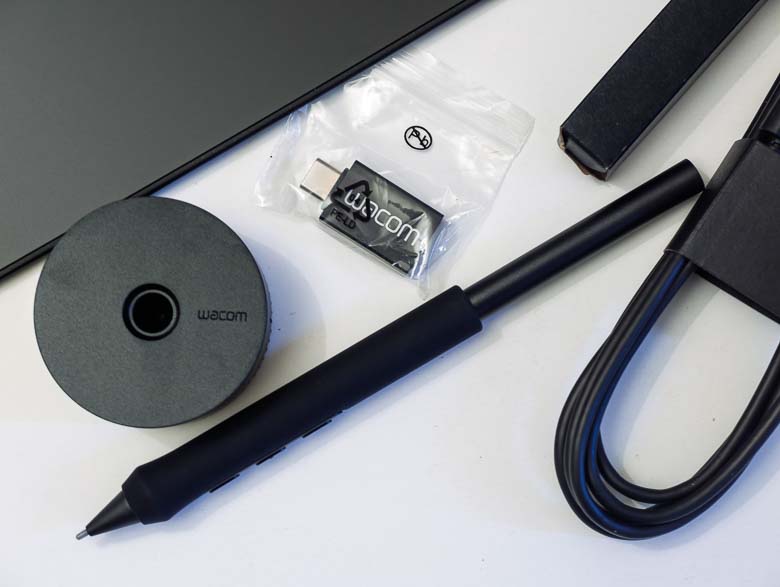
The Wacom Intuos Pro M comes with a good number of things that I missed from what was included with the Wacom Movink. Firstly, I love that there’s a weighted cylindrical pen holder. Having something that keeps the pen upright on a desk ready to be grabbed at a moment’s notice has become essential.
You’ve also got a USB-C Bluetooth dongle included just in case you’ve got a computer that does not have Bluetooth already built in. I guess that might be kind of rare these days, but if I were building a powerful workstation tower today, I certainly might skip including a Bluetooth radio. Of course, you’ve got a USB-A to USB-C cable for plugging the Intuos Pro into a computer as well. We’ve got some pen-tip replacements and the Pro Pen 3 with a nice rubber grip.
Hardware
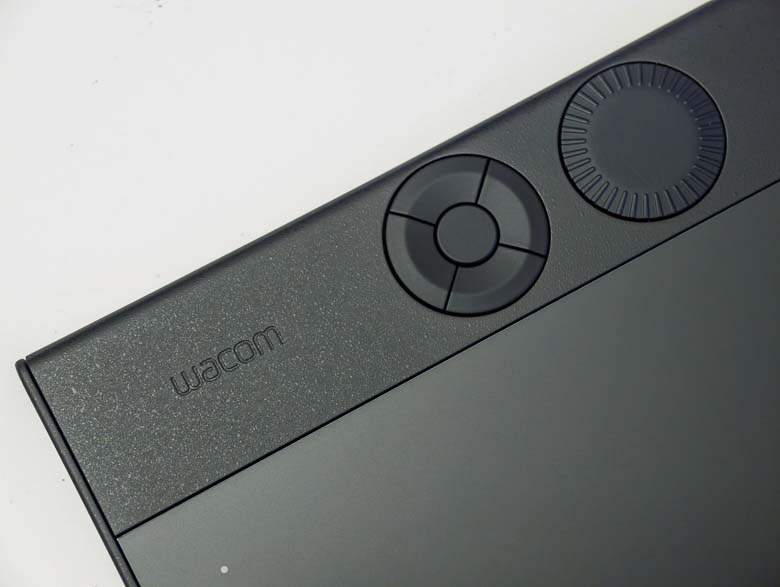
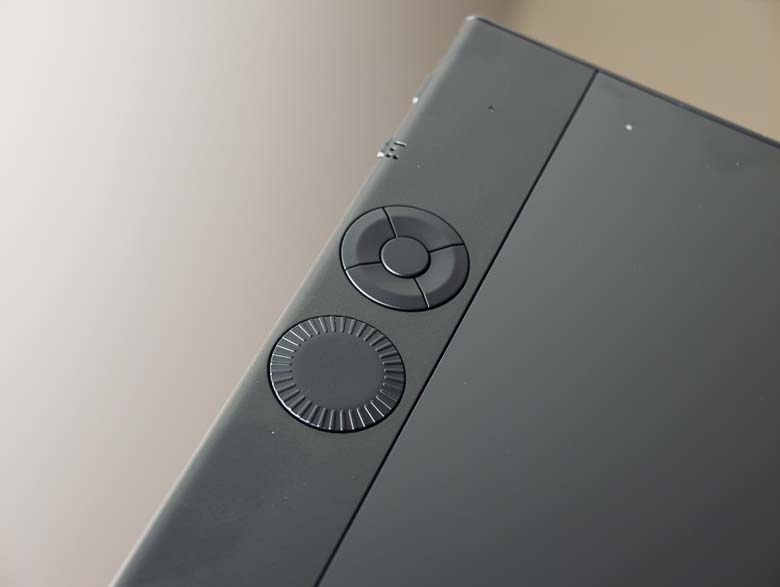
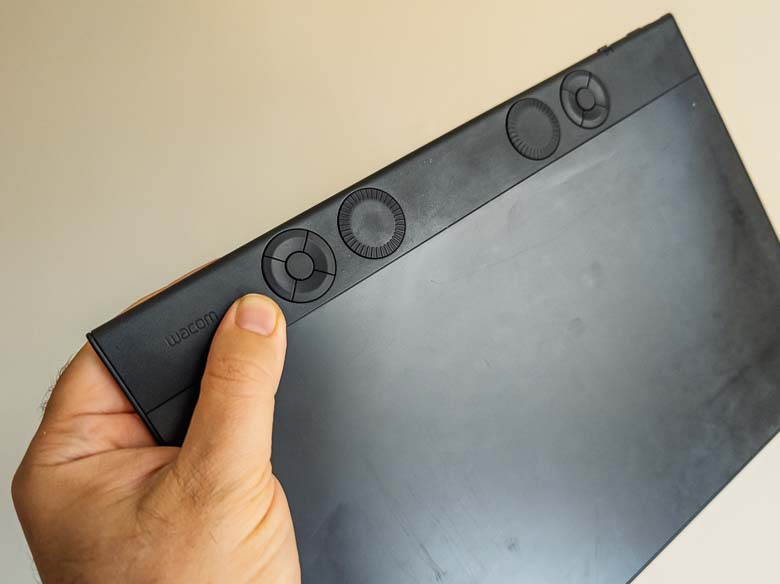
An essential part of Wacom graphics tablets are the programmable hardware button controls. The Wacom Intuos Pro M has two 5 button directional button layouts on the top edge bezel as well as two programmable dials.
The buttons and dials are very sturdy and feel like they will last a very long time. Usually I kind of like these “express keys” to be on the side of the tablet because then I can hold it with my left hand with my thumb over the buttons and then use the pen with the right hand. The tablet can be used in any rotation configuration, so I could use it in vertical mode with the buttons on the left if I wanted to, but then the pen tablet active area would be vertical instead of horizontal.
If you want to hold the Intuos Pro M in landscape orientation with your left hand while using the pen in your right hand, the express keys are in the perfect position to be completely unusable. The circular 5 button array is just out of reach of a thumb.
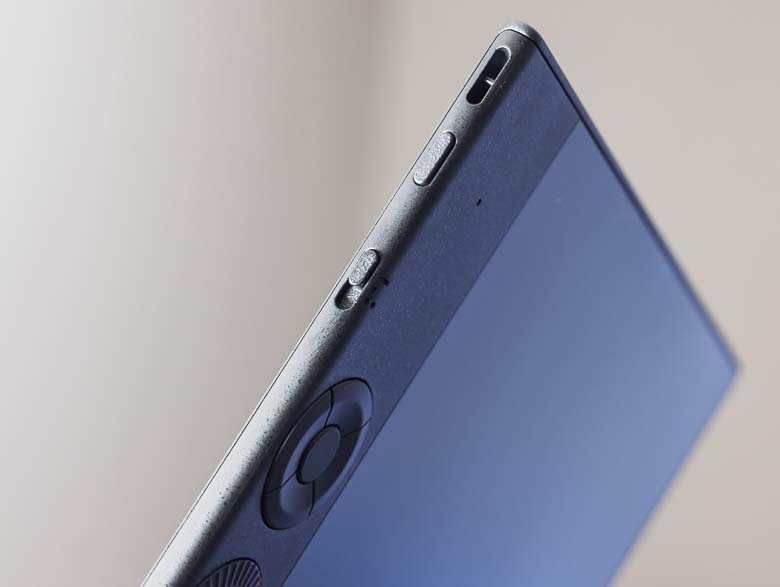
On the top edge we have a power/pairing button as well as a device switch. The first position for the switch is if you’re using it plugged into a PC with the USB wire. The second and 3rd positions are for Bluetooth wireless connections.
Pressing and holding the power button will turn the device on or pressing and holding it again for a longer amount of time (in Bluetooth mode) will turn on pairing mode. When I first started using the Wacom Intuos Pro M, pressing and holding to turn it on would often also go into pairing mode and delete my previously paired connection. It seems that running a firmware update through the Wacom software has fixed that, as I no longer can reproduce that problem. So be sure to install the updates when you get yours!
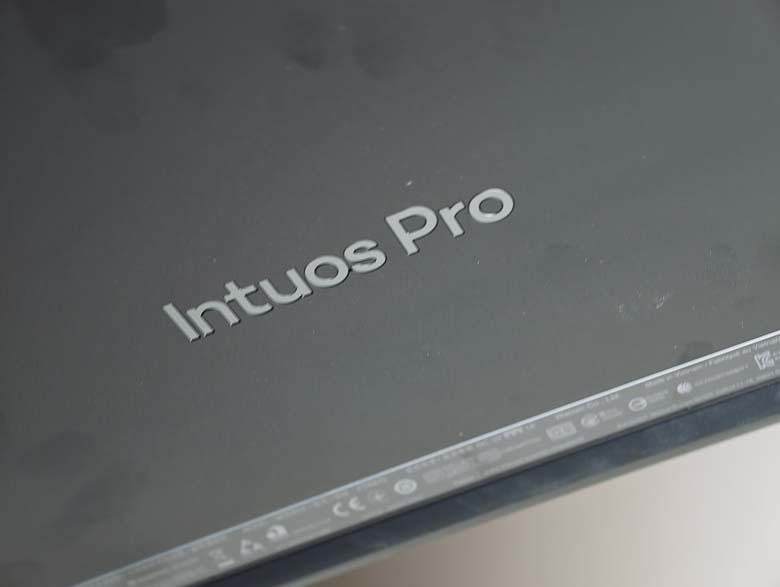
On the back we’ve got a really nice embedded “Intuos Pro” logo.
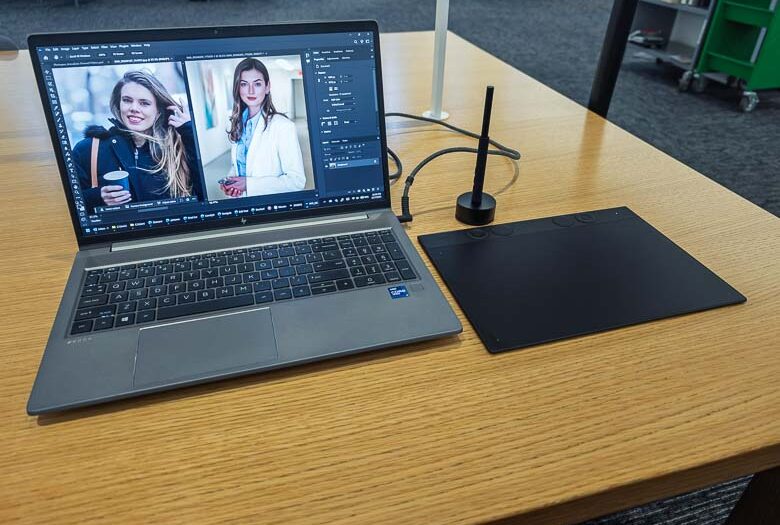
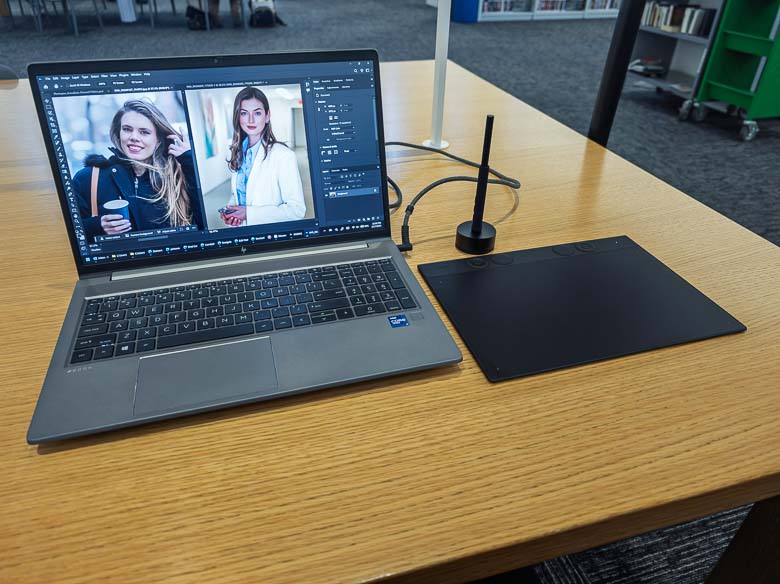
On a desk, the Intuos Pro looks really good. It’s just a thin black panel with a pen. No wires or clutter needed.
Comparisons
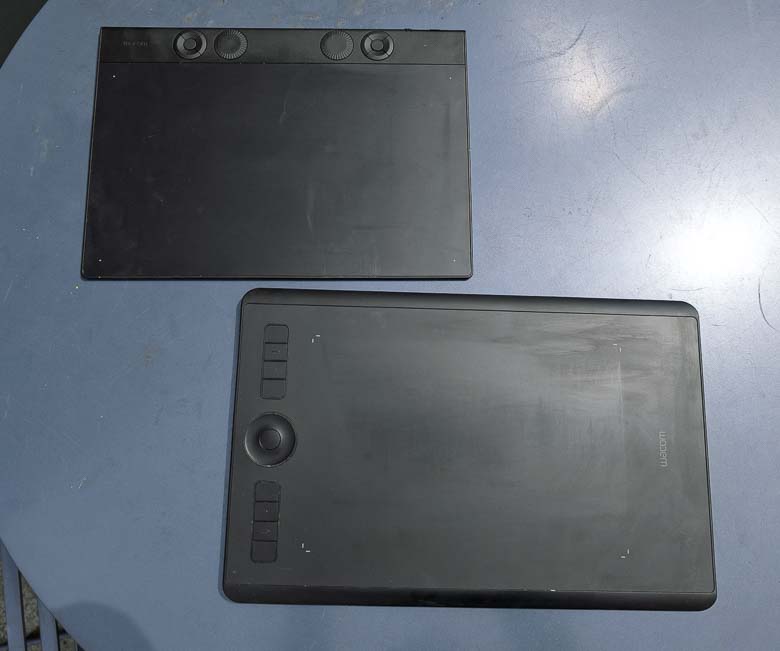
The Wacom Intuos Pro M from 2017 is a lot different from the new 2025 version. The 2025 version is thinner and much lighter with much smaller overall dimensions while still keeping the same dimensions for the active area. This was done by reducing the width of the bezels around the edges, which is certainly great for making it all more portable, but from a usability perspective the extra wide palm rest on the side made the right edge of the active area (if I’m using it right handed) much easier to use since I had a flush surface to rest the palm and stabilize my pen movements. With the new one, there’s no palm rest area; it just drops off. The 2017 version also had a more comfortable layout of programmable express keys that could be accessed by my non-dominant hand while holding the tablet. Some people have made 3D printed attachments to extend the bezel and create a palm rest area for the 2025 Wacom Intuos Pro M so that it’s more comfortable to use.
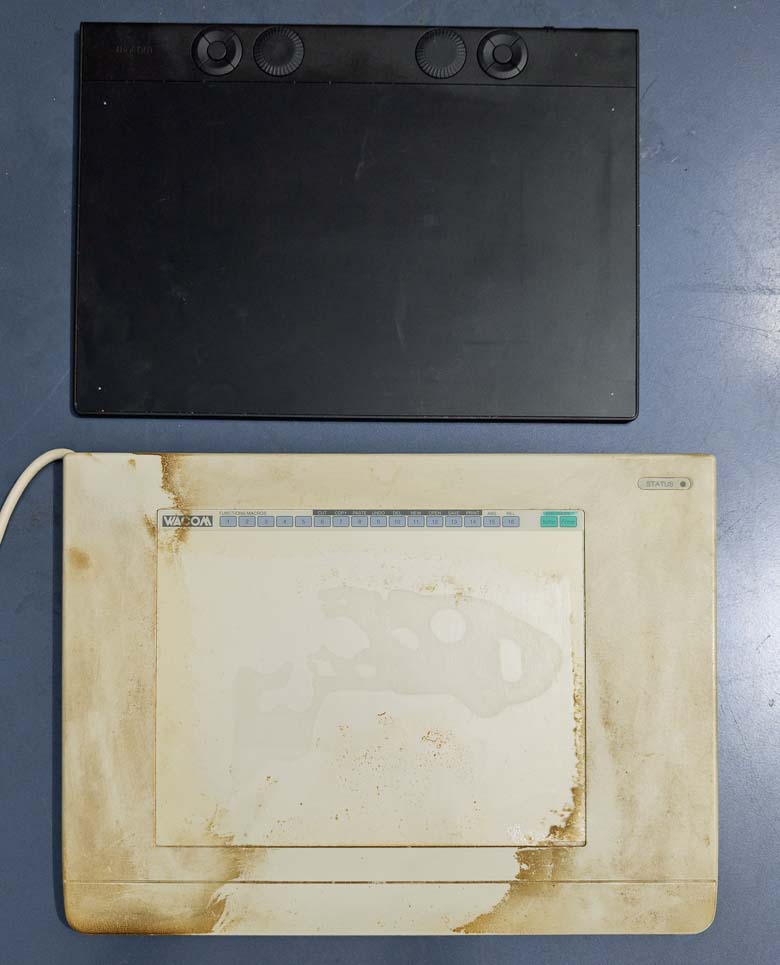
I also dug out my Wacom Art Z II 8×6″ graphics tablet from the late 1990’s as that was my first “medium” sized Wacom tablet (after falling in love with the smaller art pad when that was the only one I could afford as a teenager.) It’s not easy to clean. The Art Z II graphics tablet had a row of flat buttons at the top that were all pre-programmed and labeled so I could tap the ones I wanted with the pen right there. The active area also had a flip-up plastic piece that could hold a sketch or printed paper that I might want to trace or just leave there as a decoration. Of course the old Art Z II was much thicker, heavier, and even had a permanently attached serial cable who’s opposite end also had a power plug. My how times have changed!
Wacom Pro Pen 3
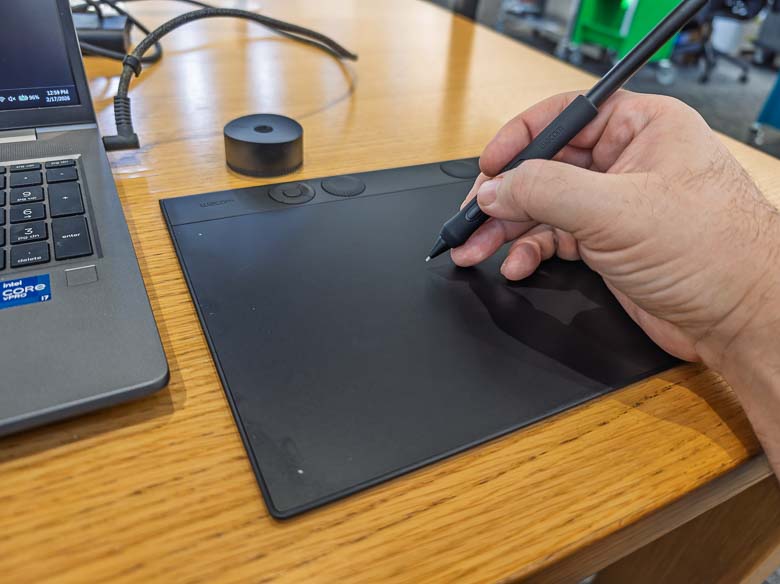
I like the Pro Pen 3 a lot, especially the version that comes with the Intuos Pro since the version that comes with the Wacom Movink does not have the rubber grip. I miss the eraser on the opposite end a little, but using a barrel button as an eraser is technically better since you don’t have to spend all of that energy flipping the pen around; all you have to do is hold the button while keeping the same grip on the pen.
In working with the pen, it feels just as it should; smooth and accurate. This is what I always expect from the Wacom pen tablets and tablet displays and they are far superior to the N-Trig Microsoft pen technology that often gets built into other products.
Software
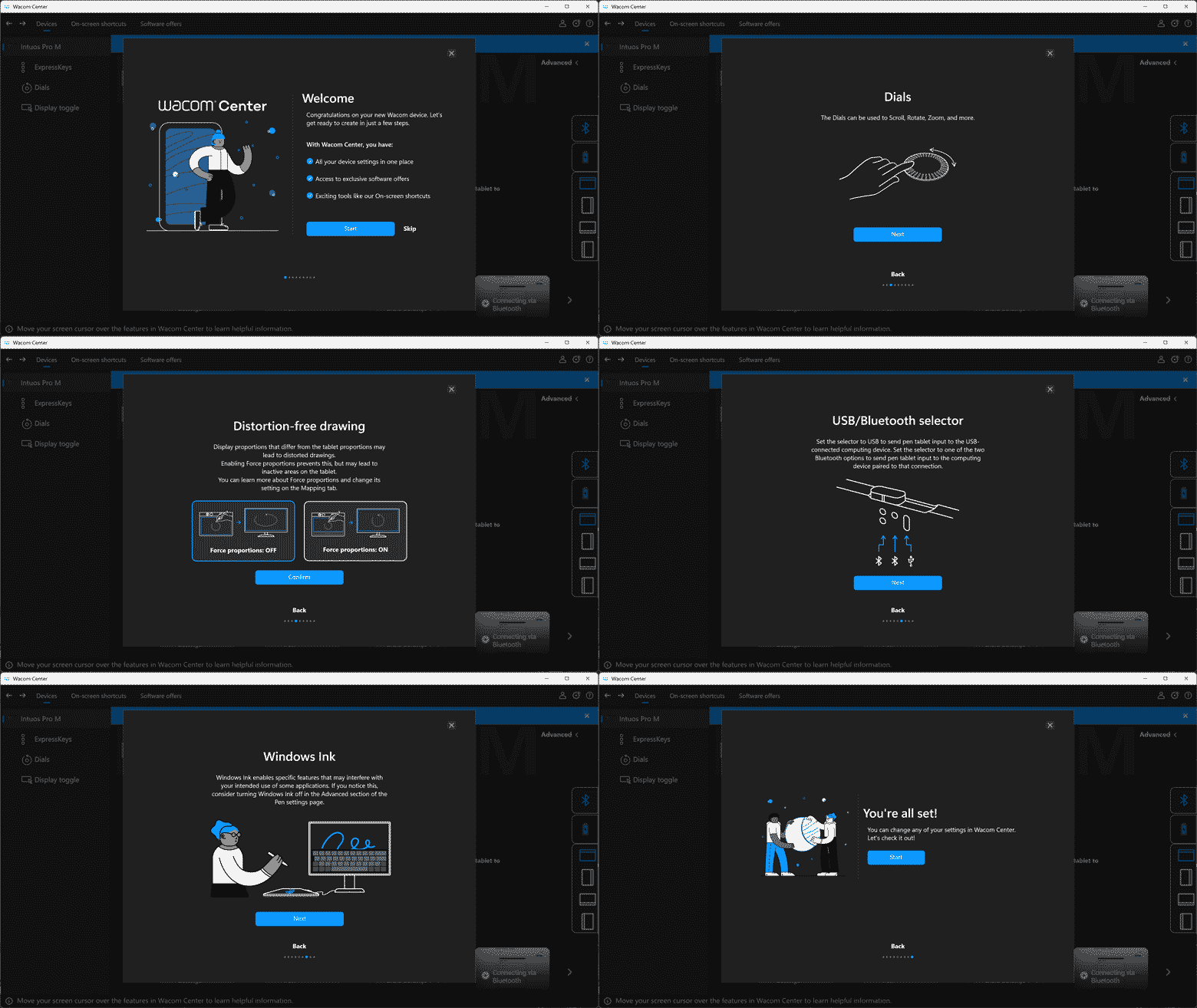
The software setup shows a slideshow of numerous tips to help you understand what the software can do, how to control the hardware, and even a recommendation for disabling the awful “Windows Ink” implementation that Microsoft added with Windows 10’s Fall Creator’s Update 2 that broke so many traditional pen user interface functions. I also recommend that, but Adobe Photoshop happens to work better with “Windows Ink” enabled and you can do that on a program by program basis in the customization settings.
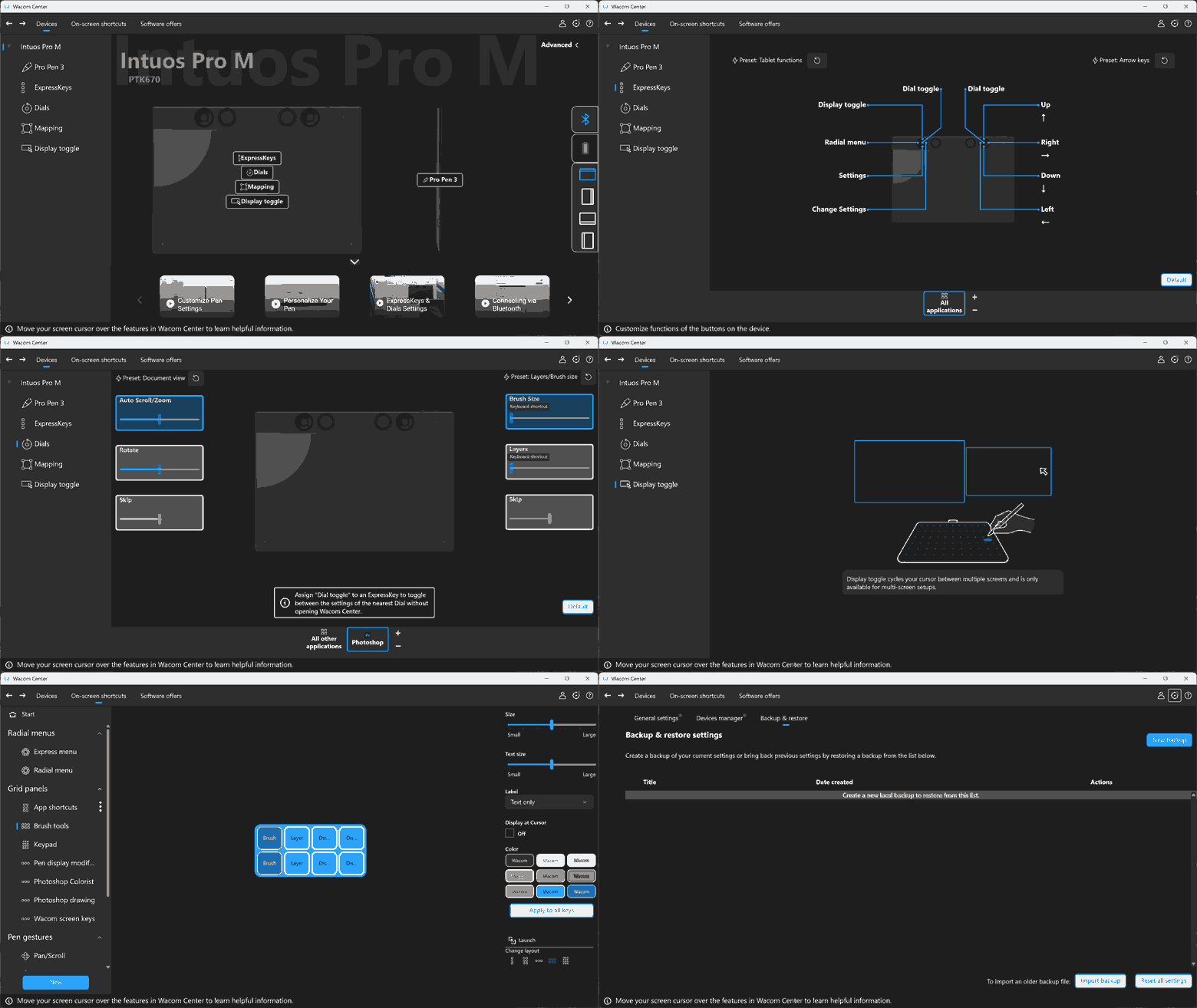
The Wacom driver software itself is extremely robust. A huge variety of functions are available to assign to each express key, dial, pen barrel button, etc. You can even create your own on-screen custom button panels which can be activated with a programmable hardware button and then accessed with the regular mouse pointer. This lets you create whole radial lists or grids of programmed functions for each program that you use for very quick and easy access to your most important functions without having to use the keyboard or navigate menus. It’s all extremely useful!
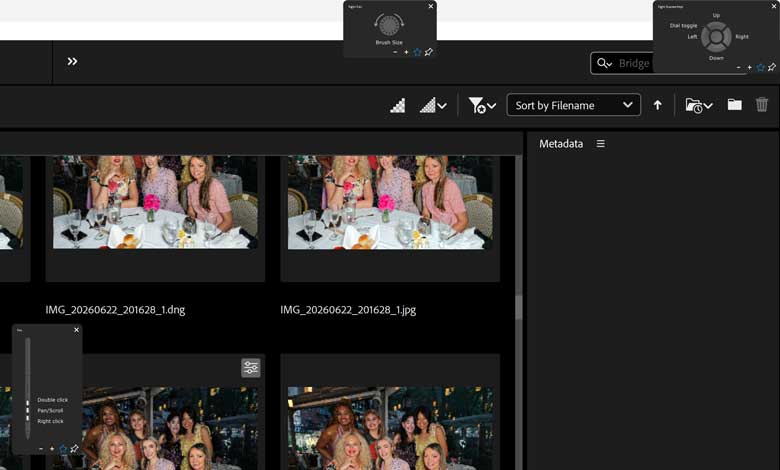
One of the express keys defaults to showing the settings for the express keys on screen when pressed. All of the express keys will also do an overlay on screen when pressed, showing the labels and lists of what they are programmed to do. Unfortunately, this overlay does not respect the display scaling levels of the operating system which means their text is going to appear extremely tiny and unreadable if you have a screen with a higher pixel density.
Of course the Wacom Intuos Pro works beautifully with every software program you can through at it. The software is so customizable that you can make it do practically anything you want. There are a couple gotcha’s though. As previously mentioned, you may want to set the “Windows Ink” setting to automatically enable when using Photoshop. There may be similar tweaks for other graphics programs depending on what you’re using.
Another annoying thing is that the middle barrel button is assigned to a “scroll/pan” function by default and while I thought that might be nice to have instead of using dials or moving the pointer all the way over to a scrollbar; the function is dreadfully unreliable in use. It only works if you press the barrel button before you touch the pen to the tablet and start moving; even if the Pen Button Mode > Hover Click is turned on. Also, the “scroll/pan” function is dreadfully inconsistent and behaves kind of differently on every scrollable window. Sometimes it moves fast, sometimes slow, sometimes it jumps to a completely different part of the page. The jumping happens if you’re moving the pen tip across the tablet surface and the press the button to activate scrolling; in that scenario it will jump to whatever area you might have started the pen moving from. I recommend just assigning that middle barrel button to something completely different and ignoring the default scroll/pan function for now, but Wacom knows about this bug and a future software update will probably fix it. The bug has probably been there for decades though and I never noticed it because I always only had 2 barrel buttons on the pen instead of 3.
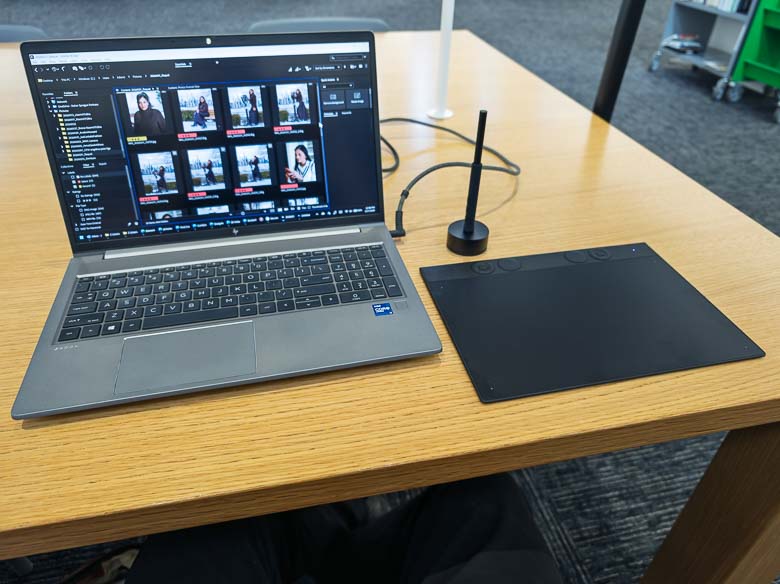
While the Wacom Intuos Pro introduces some problems like the unergonomic positioning of programmable hardware keys and dials, it’s also got some excellent new features like the greatly reduced form-factor which beautifully improves portability. I love that the Intuos Pro is so thin and small that it can go into a laptop back right next to the laptop and be barely noticeable. If you’ve got a powerful graphics editing laptop, connecting the Intuos Pro turns it into a professional level workstation without sacrificing the portability.